Hardware Fixes That Beat Software Tweaks: Fans, Thermal Paste, Ethernet and Wi-Fi
When an optimization guide cannot fix a problem: cheap hardware changes that solve thermal throttling, stutter and lag spikes.
Main page for optimization: Optimization Guides →
When an optimization guide cannot fix a problem: cheap hardware changes that solve thermal throttling, stutter and lag spikes.
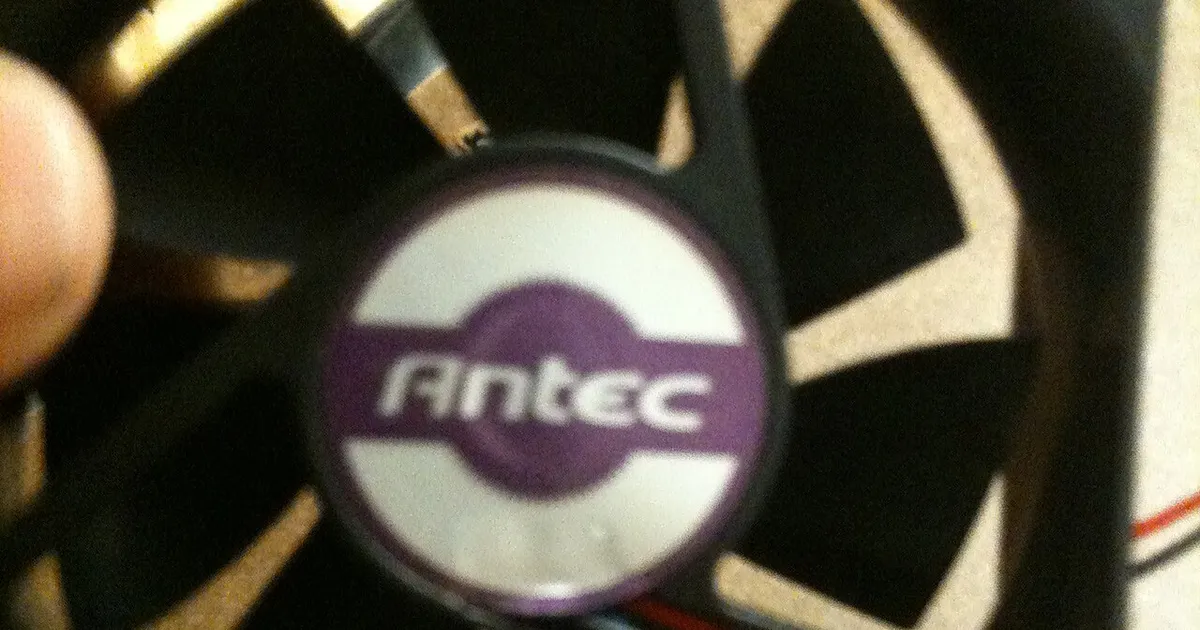
Photo by Mkhan4793 / Wikimedia Commons / CC BY-SA 3.0
Affiliate links.As an Amazon Associate I earn from qualifying purchases. Links below go to Amazon; prices and availability change, so check Amazon for current pricing.Affiliate disclosure
Software optimization (game settings, driver updates, background apps) can fix a lot. But some problems are physical, and no settings tweak will fix them. These are the most common hardware fixes that solve problems software can’t.
Thermal throttling: fix airflow and paste
If your CPU or GPU temperatures climb and clock speeds drop during long sessions, your PC is throttling. Check:
- Dust: clean filters and heatsinks with an air duster.
- Airflow: cases need intake at the front or bottom and exhaust at the back or top. A pack of quiet fans like the ARCTIC P14 PWM PST 5-Pack can fix a case that only has one or two fans.
- Thermal paste: on a CPU cooler that’s several years old, reapplying paste such as ARCTIC MX-6 thermal paste can lower temperatures.
Lag spikes online: use a cable
Wi-Fi is fine for most uses, but walls, distance and interference cause latency spikes in online games. A wired connection is the most reliable fix. A long, flat Cat 6 Ethernet cable can run along a baseboard. If cable isn’t possible, a powerline adapter or a mesh system with a wired backhaul is the next best option.
Wi-Fi drops: upgrade the adapter
If your motherboard’s Wi-Fi is old, a newer adapter such as the TP-Link Archer TXE75E (a Wi-Fi 6E PCIe card) can improve stability. You need a router that supports the same Wi-Fi standard to get the benefit.
Stutter while loading: storage and RAM
Games installed on a hard drive stutter while streaming new areas. Moving them to an NVMe SSD fixes that. If you have 16GB of RAM and lots open in the background, 32GB reduces stutter in memory-heavy games.
Bottom line
If settings tweaks don’t help, check temperatures, your network connection and where games are installed. A small hardware fix often does more than any optimization guide.
Our picks: SSDs & Memory
Shop on Amazon
Affiliate links.As an Amazon Associate I earn from qualifying purchases. Links below go to Amazon; prices and availability change, so check Amazon for current pricing.Affiliate disclosure
G.Skill Trident Z5 Neo RGB DDR5-6000 32GB
EXPO-tuned kit made for Ryzen, with RGB.
Check price on AmazonKingston FURY Beast DDR5 32GB 6000MHz
Low-profile kit that clears big air coolers.
Check price on Amazon
Illustrative photos: Photo by Dmitry Nosachev / Wikimedia Commons / CC BY-SA 4.0; Photo via Wikimedia Commons / CC BY-SA 3.0; Photo by Victorrocha / Wikimedia Commons / CC BY 3.0