Capture Cards and Audio Interfaces: The Basics for New Streamers
A plain-language explainer on what capture cards and audio interfaces actually do, when you need each one, and how to avoid the most common setup mistakes.
A plain-language explainer on what capture cards and audio interfaces actually do, when you need each one, and how to avoid the most common setup mistakes.
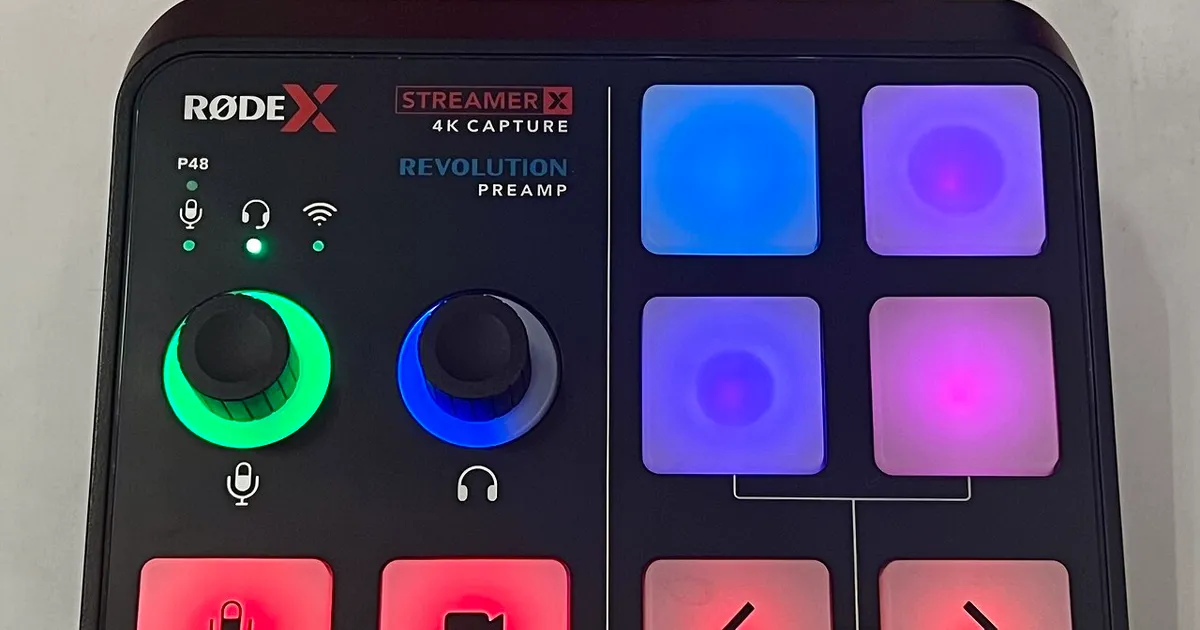
Photo by TaurusEmerald / Wikimedia Commons / CC BY-SA 4.0
Once you move past streaming straight from a single PC with default software encoding, two pieces of hardware tend to come up almost immediately: capture cards and audio interfaces. Both get recommended constantly, but the terms get thrown around loosely, and it’s easy to buy one when what you actually needed was the other. Here’s what each device does, when you genuinely need one, and how to avoid the setup mistakes that trip up most new streamers.
What a capture card actually does
A capture card takes a video signal from one device and hands it to another device so it can be recorded, streamed, or displayed. The most common use case is console streaming: your console’s HDMI output goes into the capture card, and the capture card feeds that video into your streaming PC as if it were a webcam or camera source. Without it, there’s no way to get a console’s video output into streaming software running on a separate machine.
There are two broad categories. Internal capture cards install directly into a desktop PC’s expansion slot and generally offer the lowest latency and highest quality, but they only work with that one machine and require opening the case to install. External capture cards connect over USB and work with any computer that has the right port, including laptops — more flexible, slightly more latency and processing overhead, and the more common choice for streamers not running a dedicated capture rig.
A distinction worth understanding: if you stream from a single PC where the game and streaming software both run on that same machine, you generally don’t need a capture card at all — the software can capture the game window directly. Capture cards solve the specific problem of getting video from one device into another, whether that’s a console into a PC, or a second “gaming” PC into a separate “streaming” PC in a dual-PC setup.
Latency and pass-through matter more than resolution specs
When comparing capture cards, resolution and frame rate numbers get the most attention, but two other factors matter just as much day to day. Pass-through means the card also sends the video signal onward to a monitor or TV with minimal added delay, so you (or a co-op partner) can see gameplay in real time while it’s being captured. Most modern cards support this, but it’s worth confirming before buying, especially for external models. Capture latency is the delay between something happening on screen and it appearing in your streaming software’s preview — higher latency makes it harder to keep commentary in sync with what viewers see. Both matter more for a smooth experience than resolution numbers that exceed what most viewers’ connections can even receive.
What an audio interface does differently
An audio interface is a separate category of device entirely, focused on getting analog audio signals — most often from an XLR microphone — into a computer at good quality. Most USB microphones skip this step by including the conversion hardware inside the mic itself, which is why USB mics are the simpler starting point for a lot of streamers. An audio interface becomes relevant once you want to use an XLR microphone (a category that includes many broadcast-quality mics), route audio from a mixing board, or connect multiple audio sources — like a mic and an instrument, or a mic and a separate line-in feed — into one clean signal path the computer can use.
Interfaces vary mainly by channel count (how many separate inputs you can plug in at once) and by the quality of their preamps, the internal circuitry that boosts a microphone’s weak raw signal to a usable level before conversion. A cleaner preamp means less added hiss or noise at the gain levels most speech actually requires.
Do you need one, the other, both, or neither?
- Console streamer, single setup: you need a capture card to get console video into your streaming PC, but likely don’t need an audio interface if you’re using a USB mic or headset.
- Single-PC streamer with a USB mic: you probably need neither device — software capture handles video, and the USB mic handles its own audio conversion.
- Streamer using an XLR microphone: you need an audio interface (or an XLR-to-USB adapter cable, a smaller-scale alternative) regardless of whether you also need a capture card.
- Dual-PC streaming setup: you’ll likely want a capture card to move video from the gaming PC to the streaming PC, plus whatever audio path fits your microphone type.
Getting the basics right before upgrading further
Before spending on either device, make sure the fundamentals are covered: a stable USB connection (avoid unpowered hubs for capture cards, which can starve them of bandwidth), enough CPU or GPU headroom on the receiving machine to handle capture and encoding at once, and cables rated for the resolution and frame rate you’re targeting. A high-end capture card connected through a flaky cable or an overloaded USB hub will underperform a modest one set up correctly. Nail down a clean, correctly wired signal chain first — that’s what most viewers actually notice, long before capture card specs become the limiting factor.
Our picks: Streaming gear
Shop on Amazon
Affiliate links.As an Amazon Associate I earn from qualifying purchases. Links below go to Amazon; prices and availability change, so check Amazon for current pricing.Affiliate disclosure
Illustrative photos: Photo by Alexis Fam from Madison, United States / Wikimedia Commons / CC BY 2.0; Photo by TaurusEmerald / Wikimedia Commons / CC BY-SA 4.0; Photo by Peter Placzek / Wikimedia Commons / CC BY-SA 4.0