A Beginner's Guide to PC Gaming Settings That Actually Matter
New to PC gaming and overwhelmed by settings menus? This guide explains which options genuinely affect your experience and which ones are safe to ignore at first.
Main page for gaming pcs: Gaming PCs →
New to PC gaming and overwhelmed by settings menus? This guide explains which options genuinely affect your experience and which ones are safe to ignore at first.
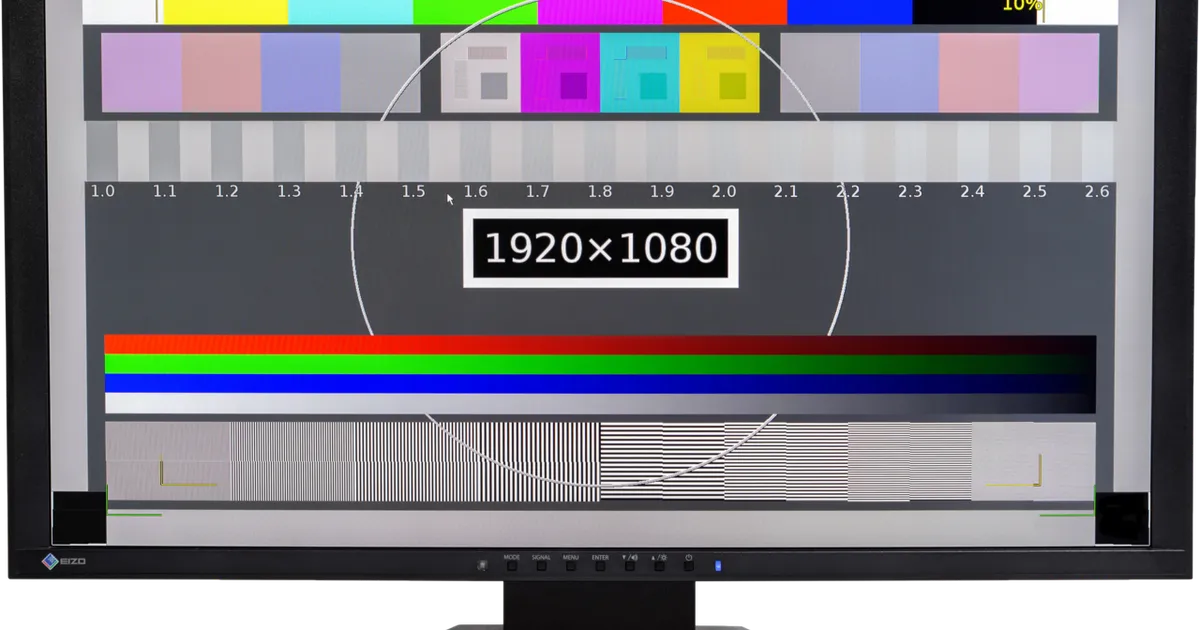
Photo by Lucasbosch / Wikimedia Commons / CC BY-SA 4.0
Switching to PC gaming from consoles — or just building your first PC — usually means opening a settings menu with dozens of sliders and dropdowns for the first time. It’s tempting to either max everything out or ignore the menu entirely and play on defaults. Neither approach is ideal. Here’s a practical starting point for beginners on which settings genuinely change your experience and which ones you can safely leave alone until you know more.
Start With the Display Tab, Not the Graphics Tab
Before touching any graphics quality sliders, get the display basics right: confirm the game is running at your monitor’s native resolution, in the correct display mode (fullscreen is generally best for performance), and with V-Sync or frame-rate limiting configured sensibly for your monitor. These settings affect how smooth and responsive the game feels far more than most graphics options, and getting them wrong can make even a powerful PC feel sluggish.
The Settings That Actually Move the Needle
Not all graphics settings cost the same amount of performance for the amount of visual improvement they provide. As a general rule, settings related to shadows, ambient occlusion, and reflections tend to be expensive relative to how noticeable they are during actual gameplay, while settings like texture quality are often cheap to run at a high level if you have enough graphics memory. A reasonable beginner approach:
- Leave texture quality high if your GPU has ample memory — it rarely costs much performance.
- Try lowering shadow quality and ambient occlusion first if you need more frame rate; the visual difference is often subtle during fast gameplay.
- Treat view distance and draw distance carefully in competitive games, since seeing enemies or objects sooner can matter more than the setting’s visual cost suggests.
- Anti-aliasing is a personal preference setting — it smooths jagged edges but can soften the image, so test a couple of options rather than assuming higher is better.
Don’t Ignore Audio and Control Settings
New PC gamers often spend all their time in the graphics menu and skip audio and input settings entirely, even though these can matter just as much. Check that your output device is correctly selected, adjust mouse sensitivity and polling settings to match your preference rather than a game’s default, and look for a separate “raw input” or similar option if the game offers one — it often makes aiming feel more direct and consistent than the standard input path.
Use Presets as a Starting Point, Not a Final Answer
Most games ship with quality presets like “low,” “medium,” “high,” and “ultra.” These are a reasonable starting point, but they’re built to look good in marketing screenshots, not necessarily to balance performance for your specific hardware. A common and effective approach is to start on a preset that runs comfortably, then manually adjust the one or two settings that matter most to you — usually shadows or resolution scaling — rather than jumping to a higher preset across the board.
A Simple Checklist for Your First Settings Pass
- Confirm resolution, display mode, and refresh rate are correct.
- Set a frame rate cap or enable V-Sync appropriate to your monitor.
- Start from a comfortable preset, then adjust shadows and ambient occlusion first if you need performance back.
- Check audio output and input sensitivity separately from graphics settings.
- Revisit settings after the first hour of play — first impressions of a setting often change once you’re actually in a real match or level.
Settings menus look intimidating at first, but most of the impact comes from a handful of choices. Get the display and input basics right, adjust the few expensive graphics settings deliberately, and leave everything else on default until you have a specific reason to change it.
Our picks: Graphics cards & Processors
Shop on Amazon
Affiliate links.As an Amazon Associate I earn from qualifying purchases. Links below go to Amazon; prices and availability change, so check Amazon for current pricing.Affiliate disclosure
NVIDIA GeForce RTX 5070 Ti
16GB card that handles high-refresh 1440p and entry 4K.
Check price on Amazon
Illustrative photos: Photo by Timothy Borkowski / Wikimedia Commons / CC BY-SA 3.0; Photo by Myself User:ZyMOS / Wikimedia Commons / CC BY-SA 4.0; Photo by Advanced Micro Devices, Inc. (AMD) / Wikimedia Commons / Attribution; Photo by Jacek Halicki / Wikimedia Commons / CC BY-SA 4.0; Photo by Ondřej Martin Mach / Wikimedia Commons / CC BY-SA 3.0