Gaming Desk Setup Checklist: From Cables to Comfort
A practical checklist for setting up or reorganizing a gaming desk, covering ergonomics, cable routing, lighting, and the small details people forget.
A practical checklist for setting up or reorganizing a gaming desk, covering ergonomics, cable routing, lighting, and the small details people forget.
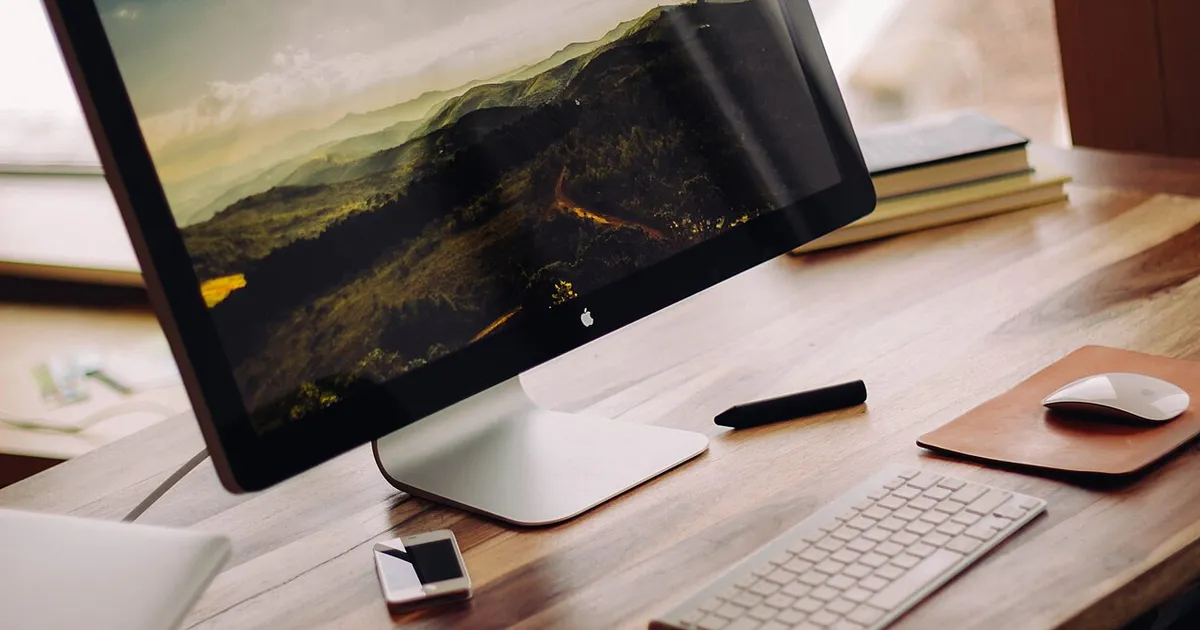
Photo by Luke Chesser / Wikimedia Commons / CC0
A gaming desk setup involves more small decisions than it first appears — monitor height, cable routing, lighting angle, and reach distance all interact with each other. This checklist walks through the details worth confirming, whether you’re setting up a desk for the first time or reorganizing an existing one.
Ergonomics Checklist
- Monitor top edge is roughly at or slightly below eye level when sitting upright.
- Monitor sits far enough away that you’re not straining forward to read text (roughly an arm’s length is a common starting point).
- Chair height allows feet to sit flat on the floor or a footrest, with knees at roughly a right angle.
- Keyboard and mouse sit at a height where wrists stay relatively neutral, not sharply bent up or down.
- Frequently used items (mouse, drink, controller) are within comfortable reach without twisting.
Cable Management Checklist
- Power strip or outlet is within reach of the desk without a cable stretched tight across a walkway.
- Monitor, PC, and peripheral cables are routed together rather than crossing the desk individually.
- Cables running to the floor are bundled or clipped so they don’t tangle with chair wheels.
- Excess cable length is coiled or tucked rather than left loose, both for tidiness and to reduce accidental snags.
- Any cable management trays, sleeves, or clips are installed before final desk placement, since they’re much harder to add once everything is set up.
Lighting Checklist
- Primary light source doesn’t create glare on the monitor screen from directly behind or in front of you.
- Ambient or bias lighting behind the monitor is considered if you often game in a dark room, since it can reduce eye strain compared to a bright screen in a dark space.
- Any RGB or accent lighting is positioned so it doesn’t reflect distractingly into the screen itself.
Surface and Layout Checklist
- Desk depth comfortably fits your monitor(s), keyboard, and mouse with room to move the mouse freely.
- Desk surface leaves space for a notepad, drink, or controller without them ending up on top of the keyboard.
- Any desk mats or full-desk pads are large enough to cover the areas you’ll actually use, not just the immediate mouse zone.
- Under-desk space is clear enough for legs to move without hitting the PC tower, cables, or storage bins.
Final Walkthrough Before You Call It Done
- Sit at the desk for a normal-length session and note anything that feels physically uncomfortable.
- Trace each cable from source to destination to confirm nothing is pinched, stretched, or at risk of being caught.
- Check that nothing blocks ventilation on your PC tower or any external drives.
- Step back and check the setup in the lighting conditions you’ll actually use it in, not just daytime light.
Why a Checklist Helps Here
Desk setups tend to get built in a rush, with comfort and cable routing treated as an afterthought once everything looks good visually. Working through comfort, cabling, and lighting as separate categories — rather than eyeballing the whole desk at once — catches issues that are much more annoying to fix after you’ve already settled into using the space daily.
Our picks: PC building essentials & Graphics cards
Shop on Amazon
Affiliate links.As an Amazon Associate I earn from qualifying purchases. Links below go to Amazon; prices and availability change, so check Amazon for current pricing.Affiliate disclosure
NVIDIA GeForce RTX 5070 Ti
16GB card that handles high-refresh 1440p and entry 4K.
Check price on Amazon


Illustrative photos: Photo by Bill Abbott / Wikimedia Commons / CC BY-SA 2.0; Photo by Timothy Borkowski / Wikimedia Commons / CC BY-SA 3.0; Photo by 18bit / Wikimedia Commons / CC BY-SA 4.0; Photo by Advanced Micro Devices, Inc. (AMD) / Wikimedia Commons / Attribution