The Ultimate Pre-Build PC Checklist: What to Confirm Before You Buy
A real, usable checklist to run through before purchasing PC parts, covering compatibility, power, clearance, and the small details that cause build headaches.
A real, usable checklist to run through before purchasing PC parts, covering compatibility, power, clearance, and the small details that cause build headaches.
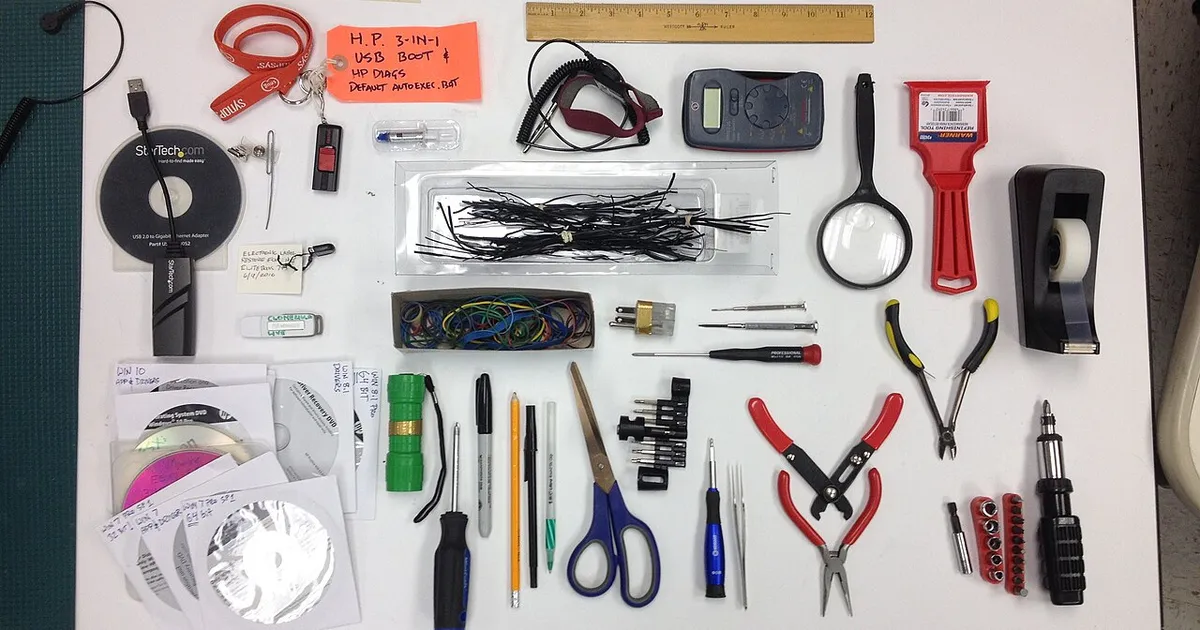
Photo by Bill Abbott / Wikimedia Commons / CC BY-SA 2.0
The most common source of PC building frustration isn’t the assembly itself — it’s discovering a compatibility or clearance problem after parts have already arrived. Running through a checklist before you buy anything catches the vast majority of these issues while they’re still easy to fix.
Compatibility Checklist
Before adding a single part to your cart, confirm:
- CPU socket matches the motherboard socket exactly (not just the same “generation” name).
- Motherboard chipset supports the CPU model, including any BIOS update that might be needed for newer chips.
- RAM speed and type (DDR generation) are supported by both the motherboard and CPU memory controller.
- Case supports the motherboard form factor (ATX, Micro-ATX, Mini-ITX).
- Power supply has the correct connectors for the motherboard, CPU, and graphics card, including any newer GPU power connector standard.
- Storage drives match available connectors (M.2 slot generation, SATA ports) and the case has mounting points for any 2.5” or 3.5” drives.
Clearance Checklist
Compatibility on paper doesn’t guarantee a comfortable fit. Also check:
- Graphics card length fits within the case’s maximum GPU clearance, accounting for any front fans or drive cages in the way.
- CPU cooler height fits under the case’s side panel, especially for air coolers in smaller cases.
- Radiator size (if using liquid cooling) matches available case mounting points, and fans won’t collide with RAM or motherboard heatsinks.
- Cable routing channels exist behind the motherboard tray for a clean build, if that matters to you.
Power and Cooling Checklist
- Power supply wattage has meaningful headroom above your components’ combined draw, not just enough to barely cover it.
- Power supply efficiency rating and connector set match modern standards you’ll want for the next several years.
- Case airflow (intake and exhaust fan count and placement) is adequate for the components you’re installing, particularly with a higher-power graphics card.
Before You Check Out
- Cross-reference your full parts list using a compatibility checking tool or community-reviewed build list, not just individual product pages.
- Confirm your monitor’s resolution and refresh rate are realistically matched by the graphics card you’re buying, so you’re not overspending or underspending relative to your display.
- Check current return policies for each retailer in case something doesn’t fit as expected.
- Set aside basic tools (screwdriver set, cable ties, thermal paste if not included) so you’re not stalled mid-build waiting on a $5 item.
Why This Step Is Worth the Time
An hour spent double-checking compatibility and clearance before ordering can prevent days of delay waiting on a return or exchange. It also avoids the frustration of a near-complete build sitting unusable because of one overlooked connector or a case that’s a centimeter too short for a graphics card. Treat this checklist as a gate you pass through before clicking “buy,” not a step to revisit after parts arrive.
Our picks: PC building essentials & Graphics cards
Shop on Amazon
Affiliate links.As an Amazon Associate I earn from qualifying purchases. Links below go to Amazon; prices and availability change, so check Amazon for current pricing.Affiliate disclosure
NVIDIA GeForce RTX 5070 Ti
16GB card that handles high-refresh 1440p and entry 4K.
Check price on Amazon


Illustrative photos: Photo by Bill Abbott / Wikimedia Commons / CC BY-SA 2.0; Photo by Timothy Borkowski / Wikimedia Commons / CC BY-SA 3.0; Photo by 18bit / Wikimedia Commons / CC BY-SA 4.0; Photo by Advanced Micro Devices, Inc. (AMD) / Wikimedia Commons / Attribution