Setting Up Switch 2 Docked: TV and Monitor Settings, Extra Docks and HDMI
How to get the best picture from a docked Switch 2 on a TV or monitor, when an extra dock is useful, and the settings to check.
How to get the best picture from a docked Switch 2 on a TV or monitor, when an extra dock is useful, and the settings to check.
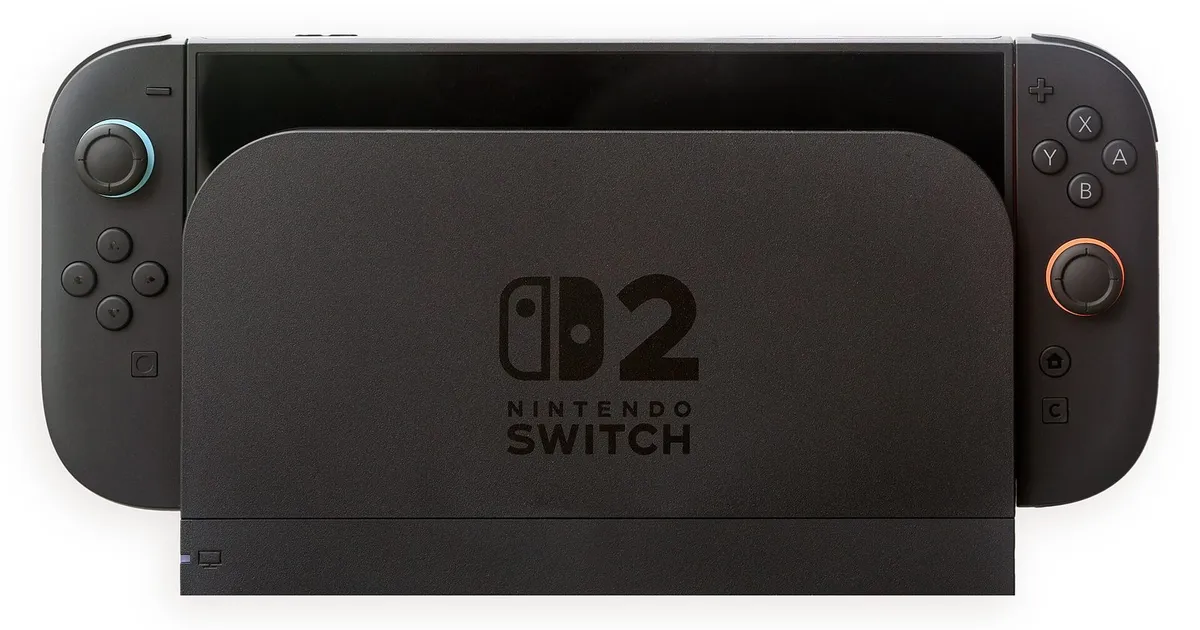
Photo by Crisco 1492 / Wikimedia Commons / CC BY-SA 4.0
Affiliate links.As an Amazon Associate I earn from qualifying purchases. Links below go to Amazon; prices and availability change, so check Amazon for current pricing.Affiliate disclosure
The Nintendo Switch 2 can output higher resolutions and frame rates when docked than the original Switch, if your TV or monitor and settings are right. This guide covers docked setup, extra docks and HDMI, based on general practice and listed specs rather than lab testing. Links go to Amazon’s current listings.
Quick answer
| Item or setting | Why |
|---|---|
| A TV or monitor with the right HDMI support | For the Switch 2’s higher docked resolutions and frame rates |
| Ultra High Speed HDMI 2.1 cable | Enough bandwidth for higher modes |
| Nintendo Switch 2 Dock Set | A second dock for another room |
| TV Game Mode | Lower input lag |
Docked output
When docked, the Switch 2 supports higher resolutions, up to 4K in supported games, and higher frame rate modes in some games. What you actually get depends on the game and your display.
TV settings
- Turn on Game Mode (or the TV’s low-latency mode).
- Enable enhanced HDMI (“HDMI UHD Color”, “Input Signal Plus” or similar) on the port you use.
- Check HDR settings in the console’s system settings.
- Use the console’s TV output settings to set resolution.
Using a monitor
A gaming monitor works well with the Switch 2, especially in a bedroom. Check its HDMI support for the resolution and refresh rate you want. See monitors for PS5 and Xbox for similar HDMI considerations.
A second dock
The official Dock Set lets you keep a dock in another room. Third-party docks exist, but using unofficial docks carries some compatibility risk; check reviews and compatibility with the Switch 2 specifically.
Audio
- TV or soundbar via HDMI.
- Headphones: through the console’s jack in handheld mode, or Bluetooth audio support (check current features).
Controllers for docked play
The Pro Controller is more comfortable for long sessions than Joy-Con 2. See Switch 2 accessories and Mario Kart World accessories.
FAQ
Does the Switch 2 output 4K? In supported games when docked, yes.
Can I use a third-party dock? Some work, but official docks are the safest choice.
Bottom line
Use Game Mode, the right HDMI port and cable, and the console’s TV settings. Add an official Dock Set for a second room. More in our Switch buying guide.
Our picks: Nintendo
Shop on Amazon
Affiliate links.As an Amazon Associate I earn from qualifying purchases. Links below go to Amazon; prices and availability change, so check Amazon for current pricing.Affiliate disclosure
SanDisk microSD Express card for Nintendo Switch 2
Switch 2 needs microSD Express cards for extra storage.
Check price on Amazon
Illustrative photos: Photo by Evan-Amos / Wikimedia Commons / Public domain; Photo by Owen1962 / Wikimedia Commons / Public domain