Upgrading the Steam Deck SSD: 2230 Drives and How to Reinstall SteamOS
Which M.2 2230 SSDs fit the Steam Deck, how to reinstall SteamOS on a new drive, and when a microSD card is enough.
Which M.2 2230 SSDs fit the Steam Deck, how to reinstall SteamOS on a new drive, and when a microSD card is enough.
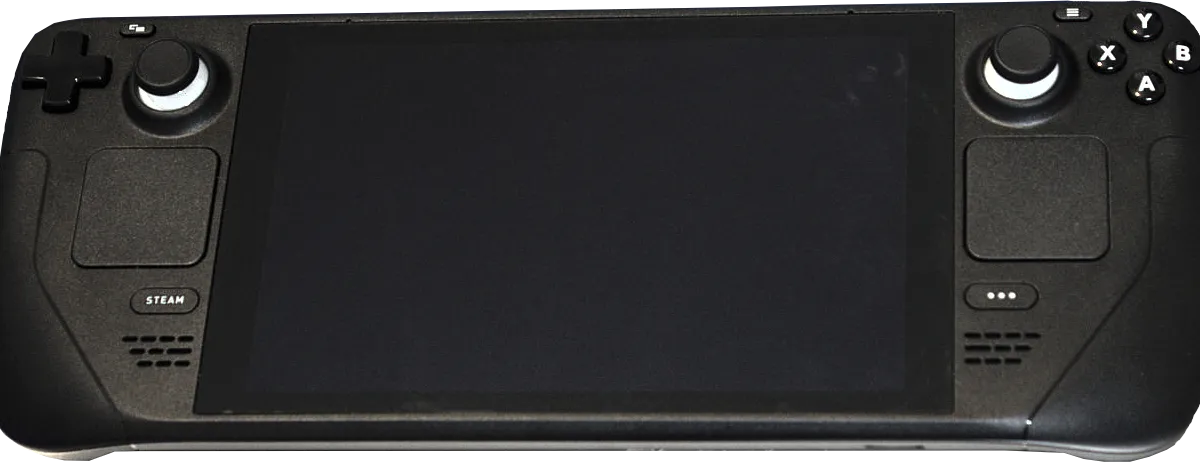
Photo by Liam Dawe/GamingOnLinux, PNG version by VulcanSphere / Wikimedia Commons / CC BY-SA 4.0
Affiliate links.As an Amazon Associate I earn from qualifying purchases. Links below go to Amazon; prices and availability change, so check Amazon for current pricing.Affiliate disclosure
The Steam Deck’s internal SSD can be replaced with a larger M.2 2230 drive, giving room for many more games. It’s a popular upgrade, especially for 256GB and 512GB models. This guide explains the process, based on general practice rather than lab testing. Links go to Amazon’s current listings.
Quick answer
| Drive | Size | Notes |
|---|---|---|
| Corsair MP600 Mini | M.2 2230 | Popular Steam Deck upgrade |
| WD_BLACK SN770M 2TB | M.2 2230 | Large capacity |
| Sabrent Rocket 2230 | M.2 2230 | Another common choice |
Before you start
- Size: the Steam Deck needs an M.2 2230 NVMe SSD.
- Warranty: opening the Deck may affect the warranty in some regions. Valve publishes repair guidance; check your situation.
- Tools: a Phillips #0 screwdriver, a plastic pry tool and a USB drive for the recovery image.
Step 1: create a recovery USB
Download Valve’s official SteamOS recovery image and write it to a USB drive (8GB or more) on a PC.
Step 2: swap the SSD
- Power off fully and enable battery storage mode if available.
- Remove the back panel screws and pry the panel carefully.
- Remove the shield and SSD, keeping the ESD sleeve to put on the new drive.
- Install the new SSD in its sleeve and reassemble.
Follow Valve’s guide or a step-by-step repair guide for your model; LCD and OLED versions differ slightly.
Step 3: reinstall SteamOS
- Connect the recovery USB (with a USB-C adapter or hub).
- Hold volume down and power to open the boot manager.
- Boot from USB and choose “Reimage Steam Deck.”
- Log in to Steam and redownload games.
Alternatives
- microSD cards add space without opening the Deck, with slower loading.
- External SSDs via USB-C work for storage.
ROG Ally users
See ROG Ally storage upgrades.
FAQ
Will a bigger SSD make games run faster? Not FPS, but loading is faster than from microSD.
Do I lose my games? Yes, you’ll redownload them. Cloud saves restore most progress.
Bottom line
Buy an M.2 2230 drive, create a recovery USB, swap carefully and reimage SteamOS. More in Steam Deck setup tips.
Our picks: Steam Deck accessories
Shop on Amazon
Affiliate links.As an Amazon Associate I earn from qualifying purchases. Links below go to Amazon; prices and availability change, so check Amazon for current pricing.Affiliate disclosure
Illustrative photos: Photo by Liam Dawe/GamingOnLinux, PNG version by VulcanSphere / Wikimedia Commons / CC BY-SA 4.0; Photo by Evan-Amos / Wikimedia Commons / Public domain