How to Clone Your Boot Drive to a New SSD
How to move Windows and your files from an old drive to a new SSD without reinstalling, with the tools and steps involved.
How to move Windows and your files from an old drive to a new SSD without reinstalling, with the tools and steps involved.
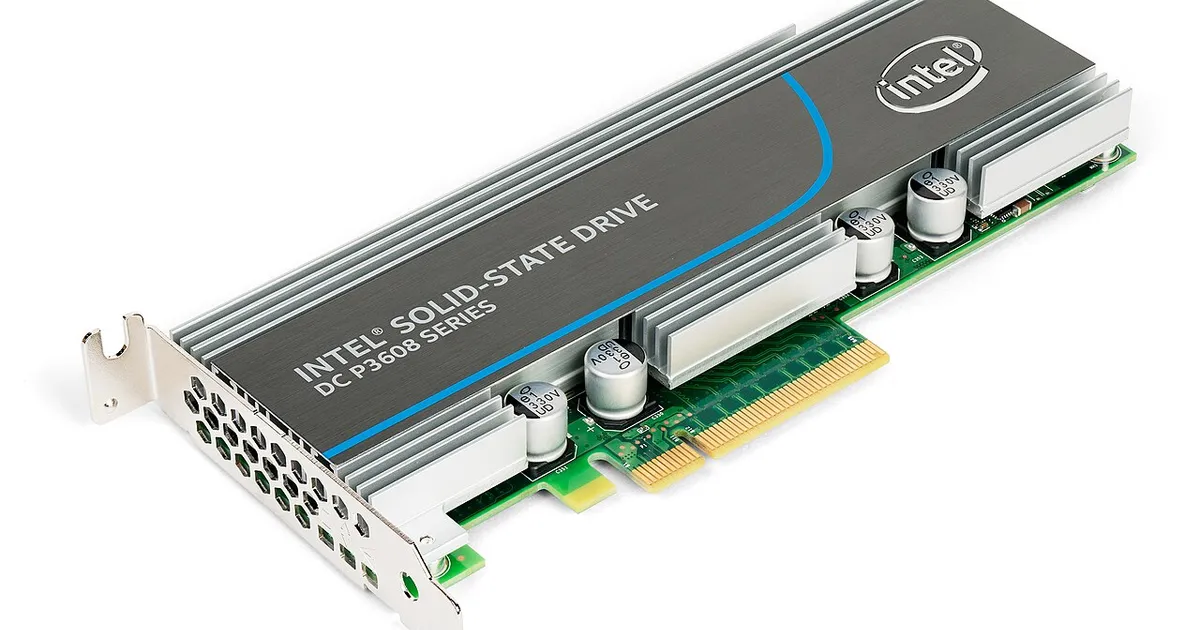
Photo by Dmitry Nosachev / Wikimedia Commons / CC BY-SA 4.0
Affiliate links.As an Amazon Associate I earn from qualifying purchases. Links below go to Amazon; prices and availability change, so check Amazon for current pricing.Affiliate disclosure
Cloning copies your entire Windows drive, including programs, settings and files, to a new SSD, so you don’t have to reinstall everything. This guide explains the process, based on general practice rather than lab testing. Links go to Amazon’s current listings.
Quick answer
| Step | Detail |
|---|---|
| Back up | Important files to another drive or the cloud |
| Connect | New SSD in a free M.2 slot or an NVMe to USB enclosure |
| Clone | With the SSD maker’s migration tool or cloning software |
| Boot | Set the new drive first in the BIOS boot order |
Example drive: WD_BLACK SN850X 2TB.
Clone or clean install?
- Clone: keeps everything as it is. Quick and easy.
- Clean install: a fresh Windows, often faster and tidier, but you reinstall apps and games.
Step 1: back up
Cloning is usually safe, but always back up important files first.
Step 2: connect the new SSD
- Desktop with a free M.2 slot: install it inside. See how to install an M.2 SSD.
- Laptop or no free slot: use a USB NVMe enclosure.
Step 3: choose cloning software
Many SSD makers provide free migration tools for their drives (for example Samsung’s data migration software, or tools bundled for Western Digital drives). Third-party cloning tools also exist. Check what’s available for your drive.
Step 4: clone
- Select the old drive as the source and the new SSD as the destination.
- Resize partitions if the new drive is larger, so you can use all the space.
- Start the clone and wait.
Step 5: boot from the new drive
- Shut down.
- For a laptop: swap the new drive into the internal slot.
- For a desktop: set the new drive first in the BIOS boot order, or remove the old drive.
- Boot and check everything works.
After cloning
- Check the drive size in File Explorer.
- Format the old drive for extra storage, once you’re sure the new one works.
Troubleshooting
- Won’t boot: check the BIOS boot order and that the clone included all partitions.
- Unallocated space: extend the partition in Disk Management.
FAQ
Is cloning safe? Generally, yes. Back up first just in case.
Will Windows need reactivating? Not usually when cloning to a new drive in the same PC.
Bottom line
Back up, connect the new SSD, clone with the maker’s tool, and set it as the boot drive. More in our Black Friday SSD deals.
Our picks: PC building essentials
Shop on Amazon
Affiliate links.As an Amazon Associate I earn from qualifying purchases. Links below go to Amazon; prices and availability change, so check Amazon for current pricing.Affiliate disclosure

Illustrative photos: Photo by Bill Abbott / Wikimedia Commons / CC BY-SA 2.0; Photo by 18bit / Wikimedia Commons / CC BY-SA 4.0