How to Install an M.2 NVMe SSD
Step-by-step installation of an M.2 SSD on a desktop motherboard, how to choose the right slot, and how to set it up in Windows.
Main page for gaming pcs: Gaming PCs →
Step-by-step installation of an M.2 SSD on a desktop motherboard, how to choose the right slot, and how to set it up in Windows.
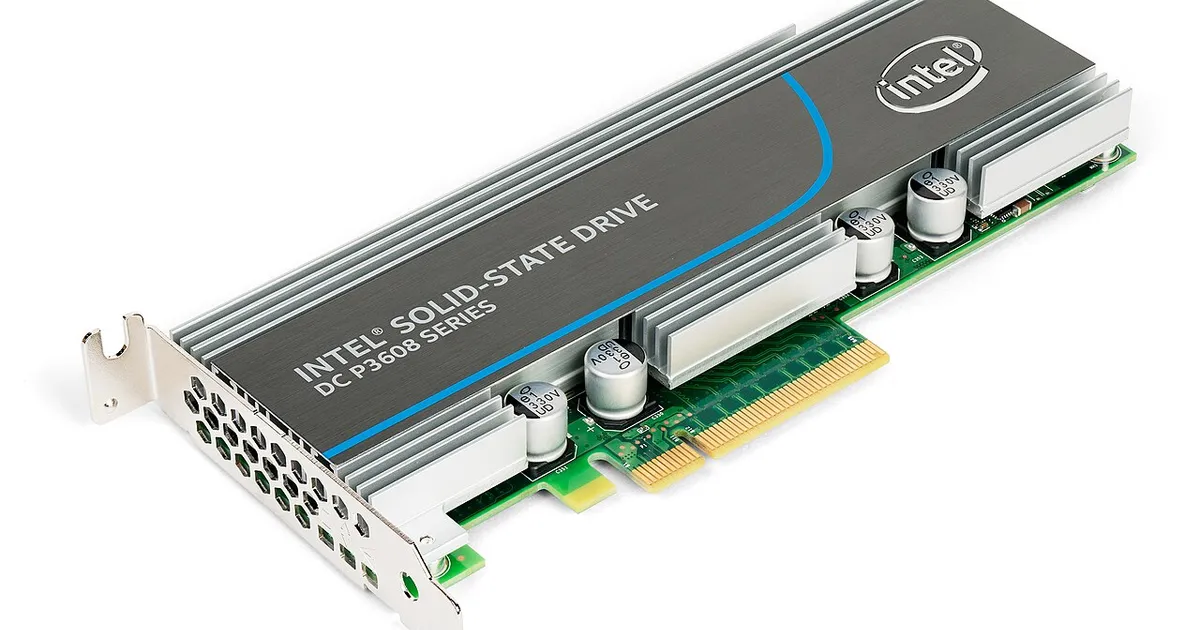
Photo by Dmitry Nosachev / Wikimedia Commons / CC BY-SA 4.0
Affiliate links.As an Amazon Associate I earn from qualifying purchases. Links below go to Amazon; prices and availability change, so check Amazon for current pricing.Affiliate disclosure
An M.2 NVMe SSD plugs directly into the motherboard: no cables, just one screw. It’s one of the easiest upgrades for faster loading and more game space. This guide covers the steps, based on general practice rather than lab testing. Links go to Amazon’s current listings.
Quick answer
| Step | Detail |
|---|---|
| Check | Free M.2 slot, size (usually 2280), PCIe generation |
| Install | Remove heatsink, insert at an angle, press down, screw or latch |
| Set up | Initialize and format in Windows Disk Management |
Example drive: Samsung 990 EVO Plus 2TB. A small screwdriver set like the iFixit Mako helps.
Before you start
- Find free M.2 slots in your motherboard manual.
- Check shared bandwidth: some slots disable SATA ports or reduce PCIe lanes when used.
- Size: most desktop slots take 2280 drives.
- PCIe generation: a PCIe 4.0 drive works in a 3.0 slot at 3.0 speed.
Step by step
- Shut down, unplug and discharge the PC.
- Remove the M.2 heatsink if your board has one; peel the film from its thermal pad.
- Insert the SSD into the slot at about a 30-degree angle, with the notch aligned.
- Press it down and secure it with the screw or tool-less latch.
- Reinstall the heatsink.
In Windows
- Open Disk Management (right-click Start).
- Initialize the disk with GPT.
- Create a new volume and format it as NTFS.
- Add it as a game library in Steam and other launchers.
Moving your boot drive?
To replace your Windows drive, see how to clone your boot drive to a new SSD.
Laptops and handhelds
Laptops often use 2280 drives; some handhelds use 2230. See gaming laptop RAM and SSD upgrades.
Choosing a drive
See our Black Friday SSD deals and how much storage you need.
FAQ
My new SSD doesn’t show up. Why? It may need initializing in Disk Management, or the slot may be disabled by a shared-bandwidth setting.
Do I need a heatsink? Most motherboards include one; it helps fast drives stay cool.
Bottom line
Check your slot and drive size, install with one screw, then initialize and format it in Windows. More in NVMe vs SATA SSDs.
Our picks: Graphics cards & Processors
Shop on Amazon
Affiliate links.As an Amazon Associate I earn from qualifying purchases. Links below go to Amazon; prices and availability change, so check Amazon for current pricing.Affiliate disclosure
NVIDIA GeForce RTX 5070 Ti
16GB card that handles high-refresh 1440p and entry 4K.
Check price on Amazon
Illustrative photos: Photo by Timothy Borkowski / Wikimedia Commons / CC BY-SA 3.0; Photo by Myself User:ZyMOS / Wikimedia Commons / CC BY-SA 4.0; Photo by Advanced Micro Devices, Inc. (AMD) / Wikimedia Commons / Attribution; Photo by Jacek Halicki / Wikimedia Commons / CC BY-SA 4.0; Photo by Ondřej Martin Mach / Wikimedia Commons / CC BY-SA 3.0