How to Set Up a Second Monitor for Gaming
How to connect, position and configure a second monitor alongside a gaming display, and how to avoid common multi-monitor problems.
How to connect, position and configure a second monitor alongside a gaming display, and how to avoid common multi-monitor problems.
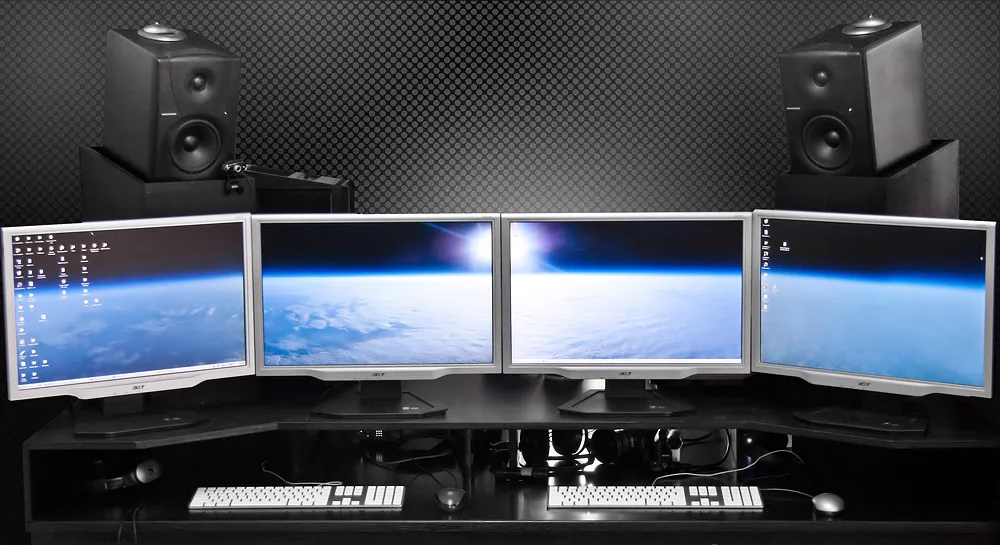
Photo by Terabass / Wikimedia Commons / CC BY-SA 3.0
Affiliate links.As an Amazon Associate I earn from qualifying purchases. Links below go to Amazon; prices and availability change, so check Amazon for current pricing.Affiliate disclosure
A second monitor is great for Discord, guides, streaming tools and browsing while you game. Setting one up well takes a few minutes. This guide explains how, based on general practice rather than lab testing. Links go to Amazon’s current listings.
Quick answer
| Step | Detail |
|---|---|
| Connect | Both monitors to the graphics card |
| Arrange | Match the layout in Windows Display Settings |
| Set refresh | Each monitor’s refresh rate individually |
| Main display | Set your gaming monitor as the main display |
| Mount | A dual stand or arm, e.g. HUANUO dual monitor stand |
A budget second screen like the ASUS VG249Q1A works well.
Step 1: connect both to the GPU
Plug both monitors into the graphics card, not the motherboard. Use DisplayPort for the gaming monitor if possible.
Step 2: arrange them in Windows
- Open Settings > System > Display.
- Click Identify to see which is which.
- Drag the screens to match their physical position and height.
- Set “Make this my main display” on your gaming monitor.
Step 3: set refresh rates
In Advanced display settings, set each monitor to its maximum refresh rate. Mixing refresh rates is fine on modern Windows, though some older setups had minor issues with video playing on the second screen.
Step 4: position them
- Gaming monitor centered in front of you.
- Second monitor to one side, angled toward you.
- Matching heights reduce neck strain.
A dual arm helps. See single vs dual vs multi-monitor arms.
Gaming tips
- Use borderless windowed if you alt-tab often; exclusive fullscreen may minimize when you click the other screen.
- Keep the mouse locked to the game screen in games that support it.
- Reduce second-screen load: video playback on the second screen uses a little GPU power.
Planning a multi-monitor desk
See planning a multi-monitor setup and second screens for streaming.
FAQ
Does a second monitor lower FPS? Slightly, if it’s playing video or animations. Usually negligible.
Can my two monitors be different sizes? Yes. Match heights and scaling for a comfortable layout.
Bottom line
Connect both to the GPU, arrange and set refresh rates in Windows, make your gaming monitor the main display, and mount them at matching heights. More in planning a gaming desk layout.
Our picks: PC building essentials
Shop on Amazon
Affiliate links.As an Amazon Associate I earn from qualifying purchases. Links below go to Amazon; prices and availability change, so check Amazon for current pricing.Affiliate disclosure

Illustrative photos: Photo by Bill Abbott / Wikimedia Commons / CC BY-SA 2.0; Photo by 18bit / Wikimedia Commons / CC BY-SA 4.0