More USB Ports for Your Gaming PC: Desk Hubs, PCIe Cards and Front-Panel Adapters
How to add USB ports to a gaming PC the right way, from powered desk hubs to PCIe expansion cards, and which devices should stay plugged into the motherboard.
How to add USB ports to a gaming PC the right way, from powered desk hubs to PCIe expansion cards, and which devices should stay plugged into the motherboard.
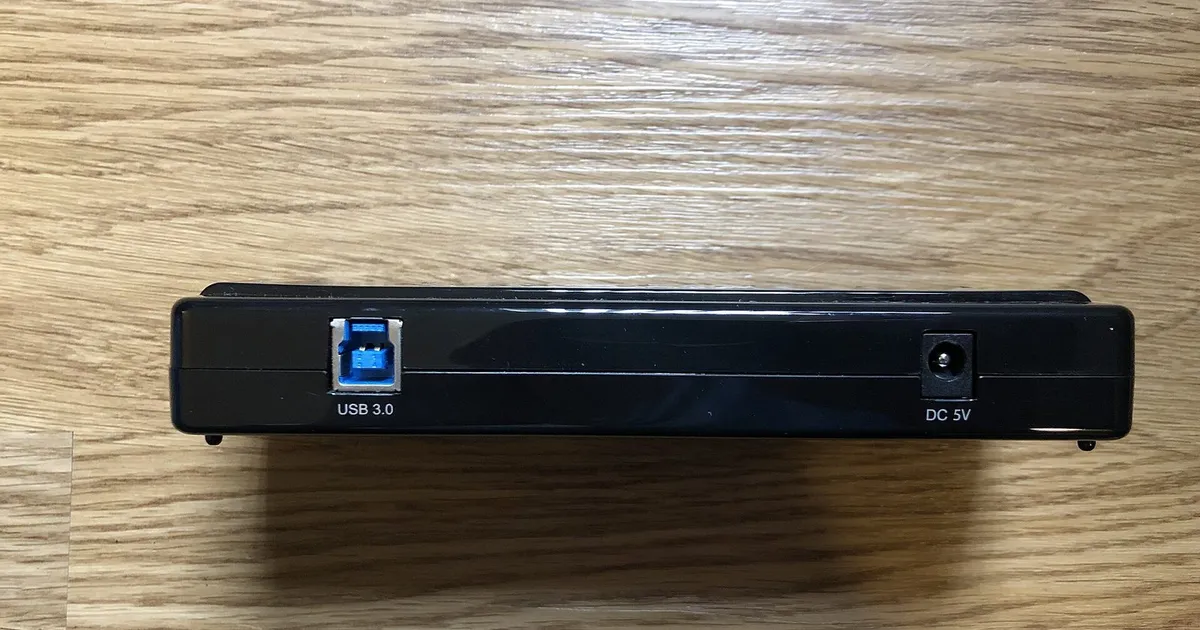
Photo by FASTILY / Wikimedia Commons / CC BY-SA 4.0
Affiliate links.As an Amazon Associate I earn from qualifying purchases. Links below go to Amazon; prices and availability change, so check Amazon for current pricing.Affiliate disclosure
Wireless dongles, a headset, a webcam, a mic, a controller, an external drive: a gaming setup runs out of USB ports quickly. You can add more with a desk hub, a PCIe expansion card or a front-panel adapter. This guide compares the options by design and listed features, not lab testing. Links go to Amazon’s current listings.
Quick answer
| Option | Best for | Watch out for |
|---|---|---|
| Desk USB hub (Anker USB 3.0 hub) | Easy access to ports on your desk | Unpowered hubs can’t supply much power |
| Hub with individual switches (Sabrent 4-port) | Turning devices on and off | Same power limits |
| PCIe USB-C card (StarTech) | Adding fast ports inside the PC | Needs a free PCIe slot and maybe power |
| Front-panel adapters | Using unused motherboard headers | Check the header type |
Desk hubs
A hub on your desk puts ports within reach, handy for flash drives and controllers.
- Powered hubs (with their own power adapter) handle webcams, external drives and charging better.
- Unpowered hubs are fine for keyboards, mice and dongles.
Wireless dongles and interference
USB 3.0 ports and hubs can interfere with 2.4GHz wireless dongles for mice and headsets, causing stutter or dropouts. If that happens:
- Move the dongle to a USB 2.0 port, or use the extension cable that came with your mouse to bring the dongle closer.
- Keep dongles away from USB 3.0 drives and hubs.
PCIe USB cards
A PCIe card adds rear USB-A or USB-C ports directly from a free motherboard slot. Useful when the motherboard’s rear panel is full, or to add faster USB-C.
- Check slot availability: a large graphics card may cover nearby slots.
- Power connector: some cards need a SATA or Molex power cable.
- Drivers: usually built into Windows.
Front-panel options
Many motherboards have unused USB headers. Front-panel adapters or a case with more front ports can use them. Check the header type (USB 2.0, USB 3.0, or USB-C/Type-E).
Which ports for which devices
- Mouse and keyboard dongles: rear ports, or USB 2.0.
- Headset dongle: rear port or extension cable near you.
- Webcam and capture devices: direct rear USB 3.0, not unpowered hubs.
- External SSDs: the fastest rear ports. See external SSDs.
Motherboard features
If you’re buying a new board, check the rear USB count and USB-C speeds. See motherboard features worth paying for.
FAQ
Do USB hubs add input lag? For mice and keyboards, not noticeably. Wireless interference is the bigger issue.
Why does my wireless mouse stutter? Often USB 3.0 interference or distance. Use the dongle extension cable.
Bottom line
Use a powered desk hub for convenience, a PCIe card for fast extra ports, and keep wireless dongles away from USB 3.0 devices. More on our Black Friday gaming deals hub.
Our picks: PC building essentials & Case fans
Shop on Amazon
Affiliate links.As an Amazon Associate I earn from qualifying purchases. Links below go to Amazon; prices and availability change, so check Amazon for current pricing.Affiliate disclosure

Illustrative photos: Photo by Bill Abbott / Wikimedia Commons / CC BY-SA 2.0; Photo by Mkhan4793 / Wikimedia Commons / CC BY-SA 3.0; Photo by 18bit / Wikimedia Commons / CC BY-SA 4.0