Upgrading a Gaming Laptop's RAM and SSD: What You Can Change and How
How to check whether your gaming laptop's memory and storage are upgradeable, which parts fit, and the tools to do it safely.
How to check whether your gaming laptop's memory and storage are upgradeable, which parts fit, and the tools to do it safely.

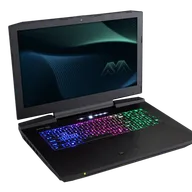
Photo by P1898 / Wikimedia Commons / CC BY 4.0
Affiliate links.As an Amazon Associate I earn from qualifying purchases. Links below go to Amazon; prices and availability change, so check Amazon for current pricing.Affiliate disclosure
Many gaming laptops ship with 16GB of RAM and a 512GB or 1TB SSD. Upgrading memory and storage is one of the easiest ways to extend a laptop’s life, if your model allows it. This guide explains what you can change and how, based on general practice rather than lab testing. Links go to Amazon’s current listings.
Quick answer
| Upgrade | Usually possible? | What to buy |
|---|---|---|
| RAM | On many gaming laptops; not if soldered | DDR5 SO-DIMM kit matching your laptop |
| SSD | Usually, often with a second free slot | M.2 2280 NVMe SSD |
| CPU / GPU | No | — |
Step 1: check what your laptop supports
Look up your exact model’s spec sheet or service manual for:
- RAM: SO-DIMM slots or soldered memory, maximum capacity and supported speed.
- SSD: number of M.2 slots, size (2280 or 2230) and PCIe generation.
Thin laptops more often have soldered RAM. Many mainstream gaming laptops, like the Lenovo LOQ, Legion and ASUS TUF series, have SO-DIMM slots, but check your exact configuration.
RAM upgrades
- Buy a matched kit: two identical sticks for dual-channel performance, for example a Crucial 32GB DDR5 SO-DIMM 5600 kit.
- Match the type: DDR5 or DDR4 SO-DIMM, as your laptop requires.
- 16GB to 32GB helps with modern games plus browser and Discord. See how much RAM you need for gaming.
SSD upgrades
- Add a second SSD if there’s a free slot, or replace the existing one with a larger drive.
- A value NVMe drive like the WD_BLACK SN770 1TB is a common choice.
- Size: most use M.2 2280; check yours.
- Replacing the boot drive: clone it with migration software, or reinstall Windows.
Compare with our Black Friday SSD deals.
How to upgrade safely
- Back up your data.
- Shut down fully and unplug the charger. Some laptops have a battery disconnect option in the BIOS, or you can disconnect the battery cable.
- Use the right tools: a precision screwdriver set like the iFixit Moray and a plastic pry tool.
- Remove the bottom panel carefully; clips can be tight.
- Ground yourself by touching metal before handling parts.
- Install the RAM or SSD, reassemble, and check the new hardware in Windows.
Warranty
In many regions, upgrading RAM and storage doesn’t void the warranty, but policies vary by brand. Check before opening, and keep the original parts.
FAQ
Can I upgrade any gaming laptop’s RAM? No. Laptops with soldered memory can’t be upgraded.
Will more RAM increase FPS? It reduces stutter when you were running out of memory, especially with apps open.
Bottom line
Check your model’s specs, buy matched RAM and the right SSD size, and work carefully. A RAM and SSD upgrade can give a gaming laptop years more life. More in gaming laptop cooling pads.
Our picks: Gaming laptops
Shop on Amazon
Affiliate links.As an Amazon Associate I earn from qualifying purchases. Links below go to Amazon; prices and availability change, so check Amazon for current pricing.Affiliate disclosure
Illustrative photos: Photo by Nikitarama / Wikimedia Commons / CC BY-SA 4.0