Docking an ROG Ally for TV Play: Docks, Controllers and Settings
How to connect an ROG Ally to a TV or monitor, what to look for in a dock, and the settings that improve docked performance.
How to connect an ROG Ally to a TV or monitor, what to look for in a dock, and the settings that improve docked performance.
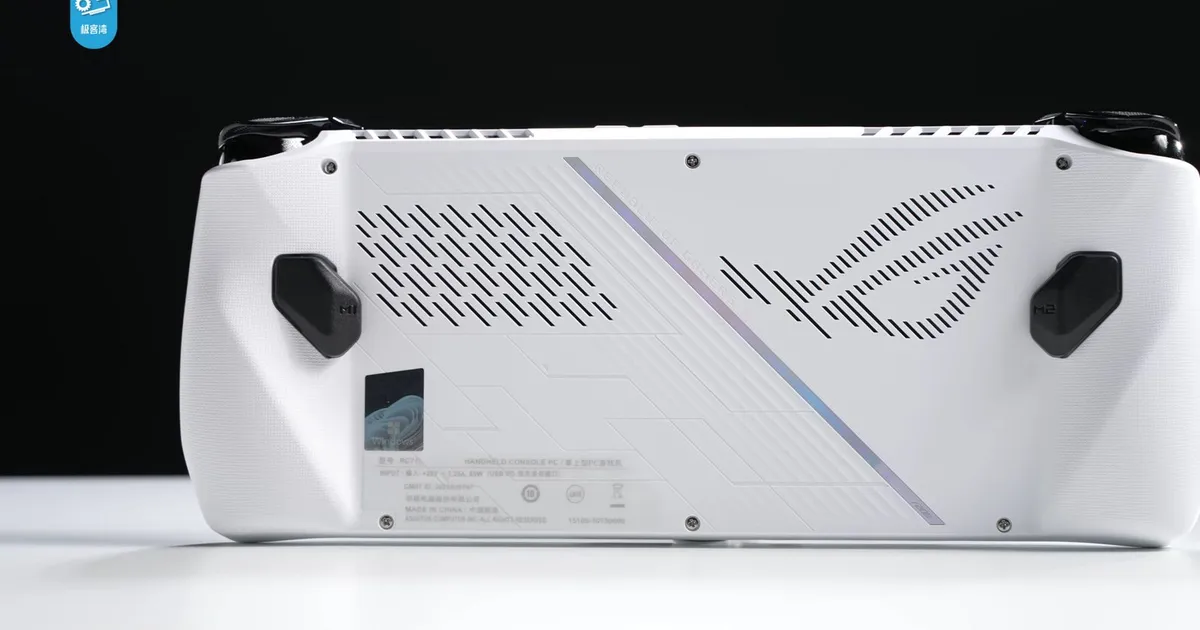
Photo by 极客湾Geekerwan / Wikimedia Commons / CC BY 3.0
Affiliate links.As an Amazon Associate I earn from qualifying purchases. Links below go to Amazon; prices and availability change, so check Amazon for current pricing.Affiliate disclosure
Docking a ROG Ally turns it into a living room console or a small desktop: connect it to a TV or monitor, add a controller, and play on the big screen. This guide explains what you need, based on general practice rather than lab testing. Links go to Amazon’s current listings.
Quick answer
| Item | Why |
|---|---|
| ASUS ROG Gaming Charger Dock | Compact charger with HDMI and USB |
| UGREEN docking station for ROG Ally | Stand-style dock with more ports |
| Wireless controller | Play from the couch |
| HDMI cable | Matching the dock’s HDMI version |
What a dock does
- Charges the handheld.
- Outputs video to a TV or monitor over HDMI.
- Adds USB ports for a controller, keyboard or drive.
- Ethernet on some docks, for stable online play and streaming.
Choosing a dock
- Power: enough wattage to charge while gaming (check the handheld’s charger rating).
- HDMI version: HDMI 2.0 supports 4K60 or 1080p/1440p at higher refresh rates; check what you need.
- Ports: USB-A, USB-C and Ethernet.
- Stand style or compact: stands hold the handheld upright.
Settings for TV play
- Resolution: 1080p is realistic for most games; 4K is too demanding for handheld chips in most titles.
- Upscaling: use FSR or the game’s upscaler.
- Power mode: Turbo mode while plugged in.
- Frame rate cap: 30 or 60 FPS for smoothness.
Controllers
Bluetooth controllers like the Xbox Wireless Controller pair easily with Windows. See how to choose a gaming controller.
Desktop use
Add a keyboard and mouse to use the Ally as a small PC. See using a Legion Go docked as a desktop for similar setup tips.
Battery health
If the handheld is docked for long periods, use any battery-care charge limit in Armoury Crate to reduce wear.
FAQ
Can the ROG Ally play games in 4K on a TV? Only lighter games. 1080p with upscaling is more realistic.
Do I need an official dock? No. Third-party docks work if they support the power and display standards.
Bottom line
Choose a dock with enough power, the HDMI version you need and the ports you’ll use, then play at 1080p with upscaling. More in ROG Ally battery and performance tips.
Our picks: ROG Ally
Shop on Amazon
Affiliate links.As an Amazon Associate I earn from qualifying purchases. Links below go to Amazon; prices and availability change, so check Amazon for current pricing.Affiliate disclosure
Illustrative photos: Photo by P1898 / Wikimedia Commons / CC BY 4.0; Photo by Evan-Amos / Wikimedia Commons / Public domain