Budget Webcams for Streaming and Calls: Logitech C922, Razer Kiyo X and NexiGo N60
What to expect from budget webcams, the settings that make the most difference, and three affordable 1080p options.
What to expect from budget webcams, the settings that make the most difference, and three affordable 1080p options.
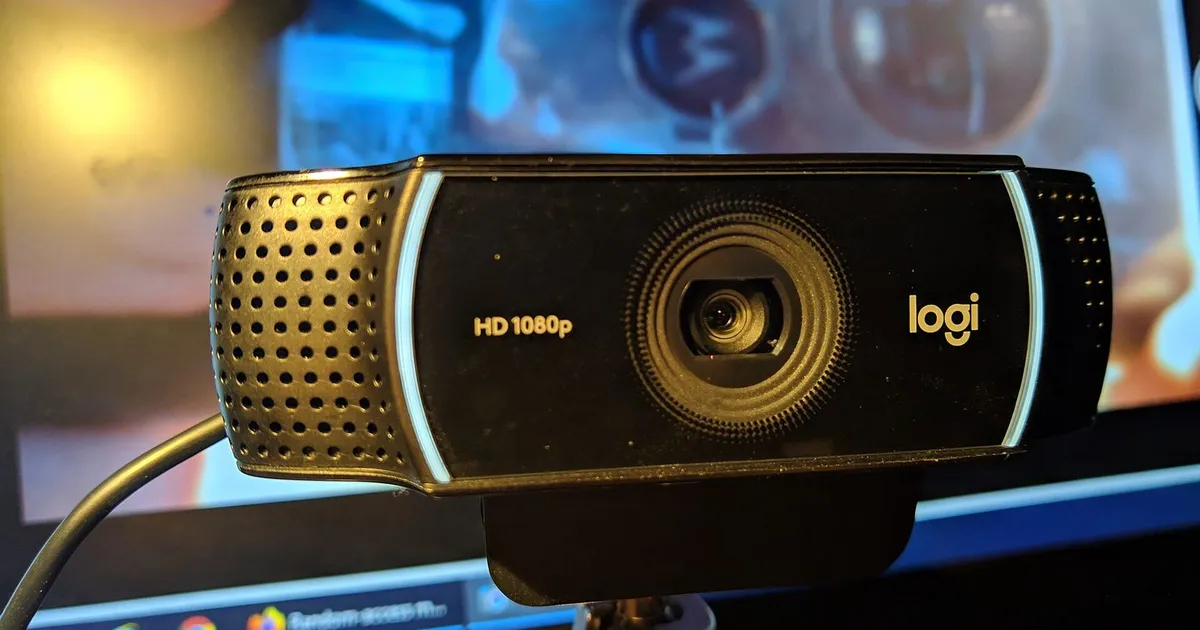
Photo: Zsinytwiki / Wikimedia Commons / CC0
Affiliate links.As an Amazon Associate I earn from qualifying purchases. Links below go to Amazon; prices and availability change, so check Amazon for current pricing.Affiliate disclosure
A budget 1080p webcam is enough for most streams and video calls, especially with good lighting. Webcams are also frequent Black Friday deals. This guide compares three popular budget models by design and listed features, not lab testing. We don’t list prices; links go to Amazon’s current listings.
Quick answer
| Webcam | Resolution | Standout | Best for |
|---|---|---|---|
| Logitech C922 | 1080p30 / 720p60 | Long-time streaming standard, tripod included | Reliable streaming and calls |
| Razer Kiyo X | 1080p | Adjustable settings in Razer software | Streamers on a budget |
| NexiGo N60 | 1080p | Very affordable, privacy cover | Calls and casual streaming |
Logitech C922
A popular streaming webcam for years, with 1080p at 30 fps, a 720p 60 fps mode and a small tripod.
- Who it suits: streamers who want a proven, widely supported webcam.
- What to weigh: image quality drops in low light, like all budget webcams.
Razer Kiyo X
A budget webcam with adjustable image settings through Razer’s software.
- Who it suits: streamers who want to tweak exposure and white balance.
- What to weigh: no built-in light (the original Kiyo had a ring light).
NexiGo N60
A very affordable 1080p webcam with a privacy cover.
- Who it suits: video calls and casual streaming on a tight budget.
- What to weigh: fewer settings and less polish than the Logitech and Razer models.
Lighting matters more than the webcam
Budget webcams have small sensors that struggle in dim rooms, producing grainy, blurry images. A simple light in front of you improves the image more than upgrading the camera.
- Face a window during the day, or use a key light or LED panel.
- Avoid strong light behind you.
- Set exposure and white balance manually in the webcam software or OBS.
See lighting, webcam and mic setup for streaming.
What to check
- Resolution and frame rate: 1080p30 is standard; 60 fps looks smoother for movement.
- Field of view: wider shows more of your room.
- Autofocus and exposure control.
- Mounting: monitor clip and tripod thread.
- Microphone: webcam mics are basic; use a dedicated mic. See budget USB microphones.
When to upgrade
For 4K, better low-light performance or auto-framing, see AI-tracking and 4K webcams. Or use a phone or camera you already own; see using your phone or camera as a webcam.
FAQ
Is a 1080p webcam good enough for streaming? Yes. Most streams show the camera small over gameplay.
Why does my webcam look grainy? Usually not enough light. Add a light in front of you.
Bottom line
A budget 1080p webcam plus decent lighting covers most streamers. C922 for reliability, Kiyo X for adjustable settings, N60 for the lowest cost. More in how to choose a streaming webcam.
Our picks: Webcams
Shop on Amazon
Affiliate links.As an Amazon Associate I earn from qualifying purchases. Links below go to Amazon; prices and availability change, so check Amazon for current pricing.Affiliate disclosure
Illustrative photos: Photo by WrS.tm.pl / Wikimedia Commons / CC0