Streaming Console Games: A Capture Card Setup Guide
How to stream a PS5, Xbox or Switch 2 through a PC with a capture card, including HDMI passthrough, HDCP settings and audio.
Main page for streaming: Streaming Gear →
How to stream a PS5, Xbox or Switch 2 through a PC with a capture card, including HDMI passthrough, HDCP settings and audio.
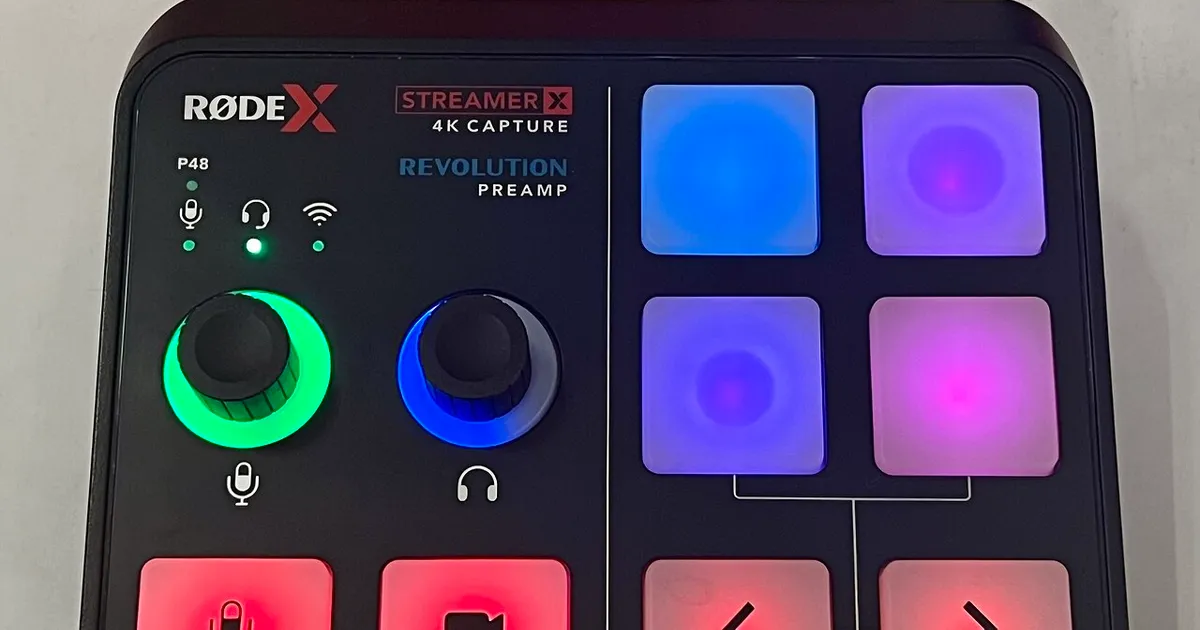
Photo by TaurusEmerald / Wikimedia Commons / CC BY-SA 4.0
Affiliate links.As an Amazon Associate I earn from qualifying purchases. Links below go to Amazon; prices and availability change, so check Amazon for current pricing.Affiliate disclosure
To stream PS5, Xbox or Switch 2 games with your own overlays, webcam and alerts, you route the console through a capture card into your PC. This guide explains the setup, based on general practice and listed features rather than lab testing. Links go to Amazon’s current listings.
Quick answer
| Item | Example |
|---|---|
| 1080p capture with 4K passthrough | Elgato HD60 X |
| 4K capture with high-refresh passthrough | Elgato 4K X |
| HDMI cables | Two: console to card, card to monitor/TV |
| Software | OBS Studio |
How it connects
- Console HDMI out → capture card HDMI in.
- Capture card HDMI out (passthrough) → your TV or monitor, so you play with no added lag.
- Capture card USB → your PC, which records or streams.
Choosing a capture card
- Passthrough: check it supports your display’s resolution and refresh rate (for example 4K60 or 1440p120).
- Capture resolution: 1080p is enough for most streams.
- HDR: some cards pass through HDR; capturing HDR can complicate streaming.
- Connection: USB 3.0 or higher.
Console settings
- PS5: turn off HDCP in the system’s HDMI settings, or the capture card won’t receive the picture. Turn it back on for streaming apps like Netflix.
- Xbox: no HDCP setting needed for games.
- Switch 2: captures through the dock’s HDMI output.
- HDR: consider turning it off for streaming, or use the card’s HDR tone mapping.
OBS setup
- Add a Video Capture Device source and select the capture card.
- Add an Audio Output Capture if needed, or use the card’s audio.
- Mic: your PC mic, with noise suppression.
- Party chat: route console chat through a headset and, if you want it on stream, capture it separately.
See OBS settings for a first stream.
Audio tips
Game audio comes through the capture card; your mic goes into the PC. Balance them in OBS. For more control, see streaming audio mixers.
Alternatives
PS5 and Xbox can stream directly to some platforms, with fewer customization options.
FAQ
Does a capture card add input lag? Not if you play on the passthrough output.
Why is my PS5 capture black? Turn off HDCP in the PS5’s settings.
Bottom line
Console → capture card → TV, with USB to your PC, then OBS. Turn off HDCP on PS5 and check passthrough specs. More in capture cards and audio interfaces.
Our picks: Streaming gear & Microphones
Shop on Amazon
Affiliate links.As an Amazon Associate I earn from qualifying purchases. Links below go to Amazon; prices and availability change, so check Amazon for current pricing.Affiliate disclosure
Illustrative photos: Photo by Alexis Fam from Madison, United States / Wikimedia Commons / CC BY 2.0; Photo by Evan-Amos / Wikimedia Commons / Public domain; Photo by TaurusEmerald / Wikimedia Commons / CC BY-SA 4.0; Photo by Peter Placzek / Wikimedia Commons / CC BY-SA 4.0