DisplayHDR Tiers Explained: What HDR400, HDR600 and True Black Mean
What VESA DisplayHDR certifications measure, why HDR400 rarely looks like real HDR, and how OLED True Black tiers differ.
Main page for monitors: Gaming Monitors →
What VESA DisplayHDR certifications measure, why HDR400 rarely looks like real HDR, and how OLED True Black tiers differ.
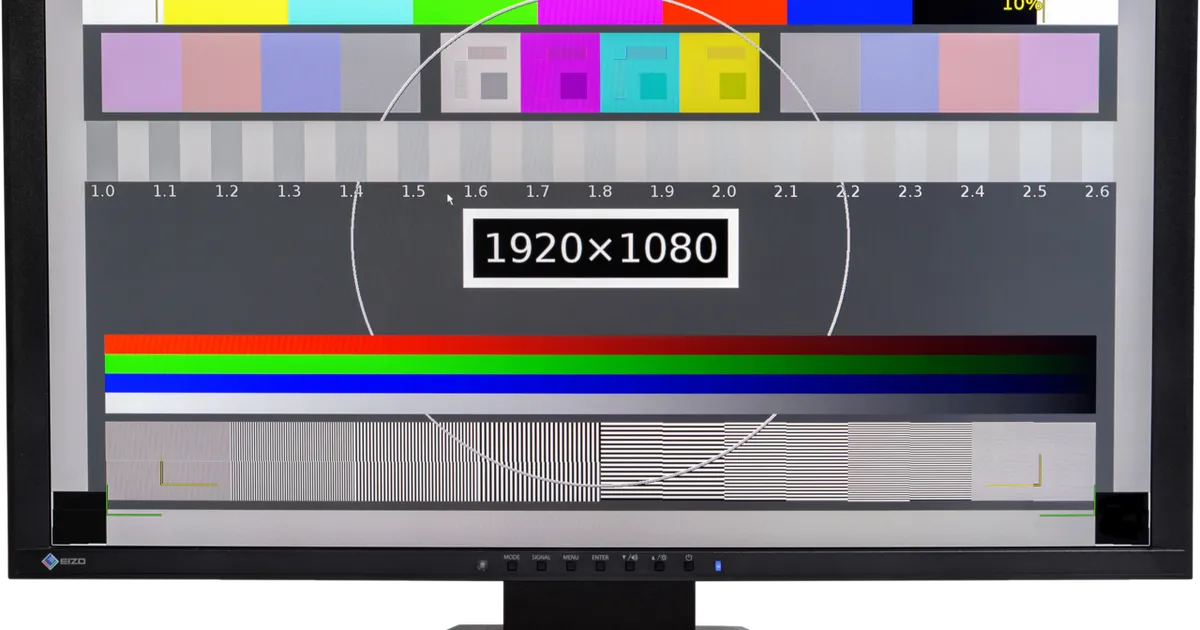
Photo by Lucasbosch / Wikimedia Commons / CC BY-SA 4.0
Affiliate links.As an Amazon Associate I earn from qualifying purchases. Links below go to Amazon; prices and availability change, so check Amazon for current pricing.Affiliate disclosure
Monitor listings often show a VESA DisplayHDR badge: HDR400, HDR600, HDR1000 or True Black. These labels tell you a lot about how good HDR will actually look, and DisplayHDR 400 often means much less than buyers expect. This guide explains the tiers, based on the certification’s general requirements rather than lab testing. We don’t list prices; links go to Amazon’s current listings.
Quick answer
| Tier | What to expect |
|---|---|
| DisplayHDR 400 | Entry level; usually little real HDR benefit on LCDs |
| DisplayHDR 600 | Brighter, often with some local dimming; noticeable HDR |
| DisplayHDR 1000 / 1400 | Bright, usually Mini-LED with many dimming zones; strong HDR |
| DisplayHDR True Black 400/500/600 | OLED tiers, focused on perfect blacks rather than peak brightness |
Examples: AOC Q27G3XMN (Mini-LED with HDR1000 certification), ASUS ROG Swift PG27UCDM (OLED, True Black tier). Check each listing for exact certification.
Why HDR400 disappoints
HDR needs bright highlights and dark shadows at the same time. Most HDR400 LCD monitors don’t have local dimming, so the whole backlight brightens together, washing out dark areas. Many players leave HDR off on these monitors.
HDR600 and above
Higher tiers require more brightness and typically use local dimming, which lights up parts of the screen independently. Mini-LED monitors with many dimming zones deliver strong HDR at a reasonable price, though blooming around bright objects can appear.
True Black (OLED)
OLED pixels turn off completely, giving perfect blacks. True Black tiers reflect this, with lower peak brightness numbers than LCD tiers but excellent contrast. HDR on OLED often looks better than the number suggests. See OLED gaming monitors explained.
Setting up HDR
- Turn on HDR in Windows (and use the Windows HDR Calibration app).
- Enable HDR in the game.
- Use the monitor’s HDR mode recommended by reviews.
- Consoles: run the console’s HDR calibration.
Should HDR decide your monitor?
If you play many HDR games, prioritize Mini-LED (HDR1000) or OLED (True Black). If not, focus on refresh rate, resolution and panel quality. See how to compare gaming monitor specs.
FAQ
Is HDR400 worth it? Usually not as an HDR feature. Treat it as an SDR monitor.
Is OLED or Mini-LED better for HDR? OLED for contrast and dark scenes; Mini-LED for brighter highlights.
Bottom line
Ignore HDR400 as a selling point. For real HDR, look for HDR1000 Mini-LED or True Black OLED. More in our Black Friday monitor guide.
Our picks: Gaming monitors & OLED monitors
Shop on Amazon
Affiliate links.As an Amazon Associate I earn from qualifying purchases. Links below go to Amazon; prices and availability change, so check Amazon for current pricing.Affiliate disclosure
ASUS TUF Gaming VG27AQ
Popular 1440p high-refresh monitor that rarely disappoints.
Check price on Amazon




Illustrative photos: Photo by Lennybird / Wikimedia Commons / CC BY-SA 3.0; Photo by Badpeon / Wikimedia Commons / Public domain; Photo by PantheraLeo1359531 / Wikimedia Commons / CC BY 4.0; Photo by Terabass / Wikimedia Commons / CC BY-SA 3.0