1% Lows and Frame Times: Why Average FPS Doesn't Tell the Whole Story
What 1% low FPS and frame-time graphs show, why stutter can happen at high average FPS, and how to improve consistency.
What 1% low FPS and frame-time graphs show, why stutter can happen at high average FPS, and how to improve consistency.
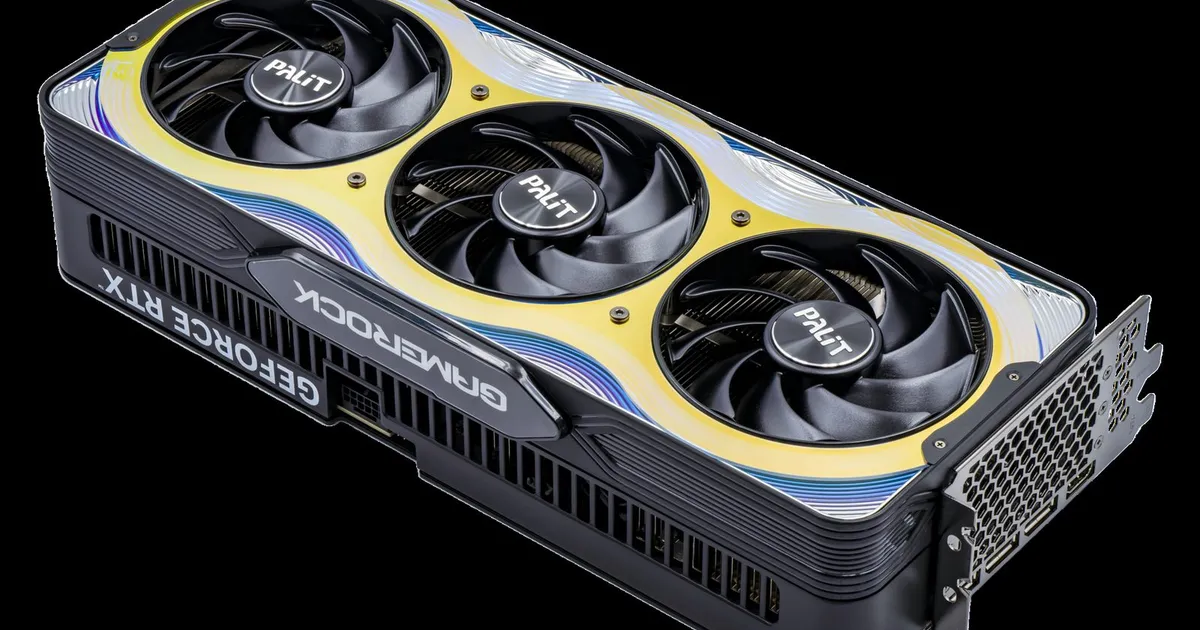
Photo by PantheraLeo1359531 / Wikimedia Commons / CC BY 4.0
Affiliate links.As an Amazon Associate I earn from qualifying purchases. Links below go to Amazon; prices and availability change, so check Amazon for current pricing.Affiliate disclosure
Two PCs can show the same average FPS and feel completely different to play. The difference is usually in the 1% lows and frame times: how consistent the frames are. This guide explains these numbers, based on how they’re measured rather than lab testing. Links go to Amazon’s current listings.
Quick answer
| Metric | What it means | Why it matters |
|---|---|---|
| Average FPS | Frames per second, averaged | Overall performance |
| 1% low FPS | The FPS level of the slowest 1% of frames | Stutter and dips |
| Frame time | Milliseconds each frame takes | Smoothness, consistency |
Average FPS hides stutter
Imagine a game running at 100 FPS most of the time, with occasional freezes. The average can still look high, while the game feels choppy. 1% lows reveal those dips.
What 1% lows tell you
- Close to the average: smooth, consistent play.
- Far below the average: noticeable stutter.
For example, an average of 120 FPS with 1% lows of 90 feels smooth; an average of 120 with 1% lows of 40 will stutter.
Frame times
Frame time is how long each frame takes to render. At 60 FPS, each frame takes about 16.7ms; at 120 FPS, about 8.3ms. A flat frame-time graph is smooth; spikes are stutters.
What causes poor 1% lows
- CPU limits, especially in busy scenes. CPUs with large cache, like the AMD Ryzen 7 9800X3D, often improve 1% lows in many games.
- Running out of VRAM or system RAM.
- Shader compilation in some games.
- Background apps and storage loading.
See RAM and storage bottlenecks and fixing a CPU bottleneck.
How to measure
- NVIDIA app, AMD Adrenalin, Steam’s overlay or tools like CapFrameX and PresentMon show FPS and frame times.
- Test the same scene each time for fair comparisons.
Making games feel smoother
- Cap your frame rate slightly below what your PC can maintain.
- Use adaptive sync (G-SYNC or FreeSync).
- Close background apps.
- Update drivers.
Reading reviews
When comparing CPUs and GPUs, look at 1% lows as well as averages, especially for CPUs.
FAQ
What’s a good 1% low? Ideally close to your average and above your monitor’s refresh rate target.
Does a frame rate cap help? Often yes. It keeps frame times consistent.
Bottom line
Average FPS shows speed; 1% lows and frame times show smoothness. Use both to judge performance and upgrades. More in what actually determines FPS.
Our picks: Graphics cards
Shop on Amazon
Affiliate links.As an Amazon Associate I earn from qualifying purchases. Links below go to Amazon; prices and availability change, so check Amazon for current pricing.Affiliate disclosure
NVIDIA GeForce RTX 5070 Ti
16GB card that handles high-refresh 1440p and entry 4K.
Check price on AmazonNVIDIA GeForce RTX 5060 Ti 16GB
Budget-friendly 1080p/1440p pick; get the 16GB version.
Check price on Amazon
Illustrative photos: Photo by Timothy Borkowski / Wikimedia Commons / CC BY-SA 3.0; Photo by Advanced Micro Devices, Inc. (AMD) / Wikimedia Commons / Attribution