Reducing Background Apps for Smoother Gaming
Which background apps affect gaming performance, how to manage startup apps in Windows, and when hardware is the better fix.
Main page for optimization: Optimization Guides →
Which background apps affect gaming performance, how to manage startup apps in Windows, and when hardware is the better fix.
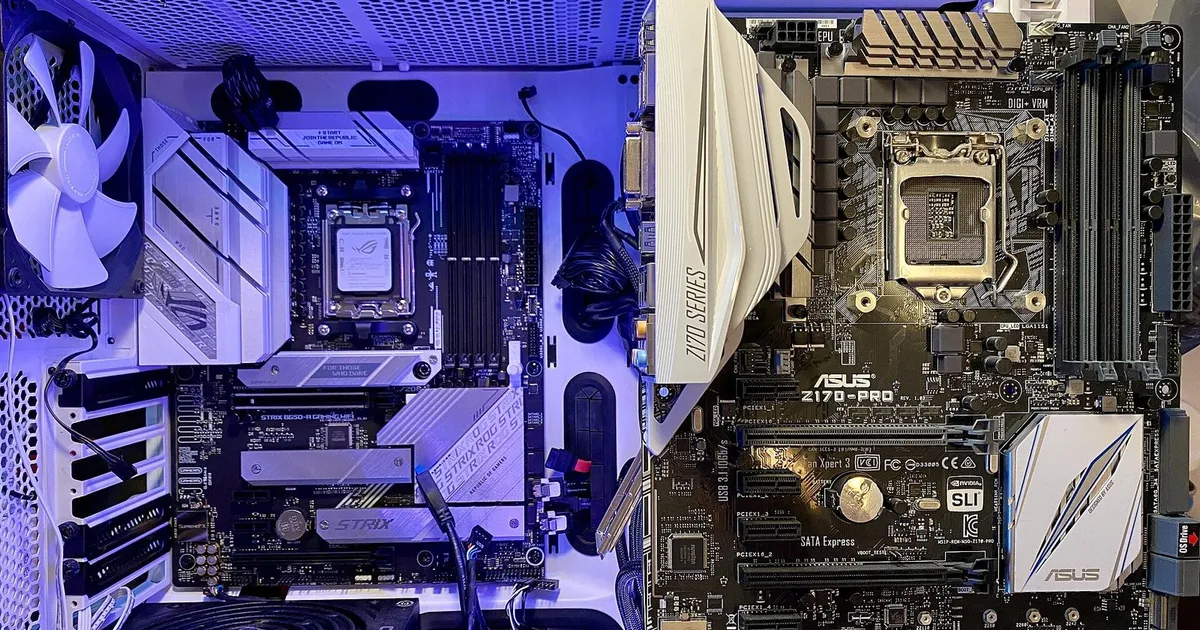
Photo by Blake Patterson / Wikimedia Commons / CC BY 2.0
Affiliate links.As an Amazon Associate I earn from qualifying purchases. Links below go to Amazon; prices and availability change, so check Amazon for current pricing.Affiliate disclosure
Background apps like launchers, browsers, RGB software and updaters use memory and CPU time, and can cause stutter in games. Trimming them is a free performance boost. This guide explains how, based on general practice rather than lab testing. Links go to Amazon’s current listings.
Quick answer
| Step | Effect |
|---|---|
| Disable unneeded startup apps | Fewer programs running all the time |
| Close browsers and launchers while gaming | More free RAM and CPU |
| Save peripheral settings to onboard memory | Close RGB and peripheral apps |
| Pause downloads and updates | Fewer lag spikes |
| Upgrade RAM if you’re always near the limit | Room for apps and games, e.g. 32GB DDR5 6000 CL30 |
Find what’s running
- Task Manager > Processes: sort by CPU and Memory.
- Task Manager > Startup apps: see what starts with Windows and its impact.
Disable startup apps
Turn off startup for apps you don’t need immediately: chat clients, launchers you rarely use, updaters, cloud storage (if not needed during play). Keep security software and drivers.
Game launchers
Steam, Epic, EA, Ubisoft and Battle.net can all run in the background. Set them not to start with Windows, and open only when needed.
Browsers
Browsers with many tabs use lots of RAM. Close them, or use the browser’s efficiency or sleeping tabs features.
Peripheral and RGB software
Save settings to your devices’ onboard memory and close the apps. See peripheral software and onboard memory.
Overlays
Several overlays at once (Discord, Steam, GPU software, recording) can conflict. Keep the ones you use.
Updates and downloads
Pause Windows Update and game downloads while playing, or schedule them.
When to upgrade
If RAM is regularly near full even after trimming, 32GB helps. Storage that’s nearly full or a hard drive can also cause stutter; a fast NVMe like the Samsung 990 EVO Plus 2TB helps. See RAM and storage bottlenecks.
Windows settings
See optimizing Windows for gaming.
FAQ
Do background apps lower FPS? They can, especially on PCs with 16GB of RAM or fewer cores, and cause stutter.
Should I disable antivirus? No. Keep security software on.
Bottom line
Trim startup apps, close launchers and browsers, save peripheral settings to devices, and upgrade RAM if you’re still short. More in what actually determines FPS.
Our picks: SSDs & Memory
Shop on Amazon
Affiliate links.As an Amazon Associate I earn from qualifying purchases. Links below go to Amazon; prices and availability change, so check Amazon for current pricing.Affiliate disclosure
G.Skill Trident Z5 Neo RGB DDR5-6000 32GB
EXPO-tuned kit made for Ryzen, with RGB.
Check price on AmazonKingston FURY Beast DDR5 32GB 6000MHz
Low-profile kit that clears big air coolers.
Check price on Amazon
Illustrative photos: Photo by Dmitry Nosachev / Wikimedia Commons / CC BY-SA 4.0; Photo via Wikimedia Commons / CC BY-SA 3.0; Photo by Victorrocha / Wikimedia Commons / CC BY 3.0