How to Install a Graphics Card
How to physically install or swap a GPU, connect its power safely, and set up drivers for the new card.
Main page for gaming pcs: Gaming PCs →
How to physically install or swap a GPU, connect its power safely, and set up drivers for the new card.
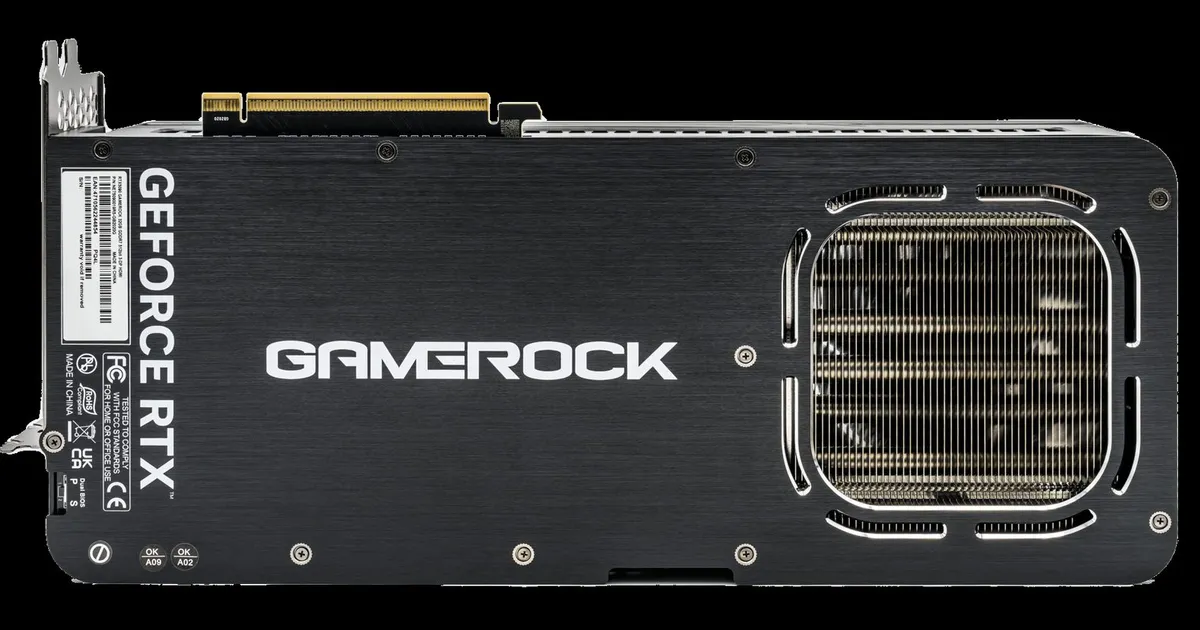
Photo by PantheraLeo1359531 / Wikimedia Commons / CC BY 4.0
Affiliate links.As an Amazon Associate I earn from qualifying purchases. Links below go to Amazon; prices and availability change, so check Amazon for current pricing.Affiliate disclosure
Installing a graphics card is one of the easiest PC upgrades, and one of the most rewarding. This guide walks through the process and the checks to make first, based on general practice rather than lab testing. Links go to Amazon’s current listings.
Quick answer: before you buy
| Check | Why |
|---|---|
| Case clearance | GPU length, height and thickness (slots) |
| Power supply | Wattage and connectors (8-pin or 12V-2x6) |
| PCIe slot | A full-length x16 slot |
| CPU balance | An old CPU can limit a new GPU |
Examples: RTX 5070, RX 9070 XT. See how much PSU you need.
Step 1: prepare
- Download the latest driver for your new GPU.
- If switching brands (NVIDIA to AMD or vice versa), consider uninstalling the old driver first, or using a clean install option.
- Shut down, unplug the PC and press the power button to discharge.
Step 2: remove the old card
- Unplug the GPU power cables.
- Remove the bracket screws at the back of the case.
- Press the PCIe slot latch and lift the card out.
Step 3: install the new card
- Remove slot covers for the new card’s width.
- Align the card with the top x16 slot and press down firmly until the latch clicks.
- Screw the bracket to the case.
- Connect power cables: push them in fully. For 12V-2x6 connectors, ensure there’s no gap and avoid sharp bends near the plug.
- Add a GPU support bracket for heavy cards. See GPU sag brackets.
Step 4: first boot
- Connect your monitor to the GPU, not the motherboard.
- Install the driver.
- Set your monitor’s refresh rate in Windows.
- Enable VRR. See G-SYNC and FreeSync explained.
Step 5: check it
- Run a game or benchmark and check temperatures and clock speeds.
- Listen for unusual noises.
Troubleshooting
- No display: check the monitor cable, power connectors and that the card is fully seated.
- Crashes: check PSU capacity and connectors, and update drivers.
More in how to troubleshoot common PC gaming problems.
FAQ
Do I need to uninstall old drivers? When switching brands, it’s a good idea.
Can I use a PCIe 5.0 GPU in a PCIe 4.0 slot? Yes, with minimal performance difference in most cases.
Bottom line
Check clearance and power, install carefully, connect power fully and plug the monitor into the GPU. More in our RTX 50-series deals checklist.
Our picks: Graphics cards & Processors
Shop on Amazon
Affiliate links.As an Amazon Associate I earn from qualifying purchases. Links below go to Amazon; prices and availability change, so check Amazon for current pricing.Affiliate disclosure
NVIDIA GeForce RTX 5070 Ti
16GB card that handles high-refresh 1440p and entry 4K.
Check price on Amazon
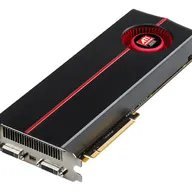
Illustrative photos: Photo by Timothy Borkowski / Wikimedia Commons / CC BY-SA 3.0; Photo by Myself User:ZyMOS / Wikimedia Commons / CC BY-SA 4.0; Photo by Advanced Micro Devices, Inc. (AMD) / Wikimedia Commons / Attribution; Photo by Jacek Halicki / Wikimedia Commons / CC BY-SA 4.0; Photo by Ondřej Martin Mach / Wikimedia Commons / CC BY-SA 3.0