G-SYNC and FreeSync Explained: Variable Refresh Rate for PC Gaming
How variable refresh rate removes tearing and stutter, how G-SYNC and FreeSync differ, and how to set VRR up correctly.
Main page for gaming pcs: Gaming PCs →
How variable refresh rate removes tearing and stutter, how G-SYNC and FreeSync differ, and how to set VRR up correctly.
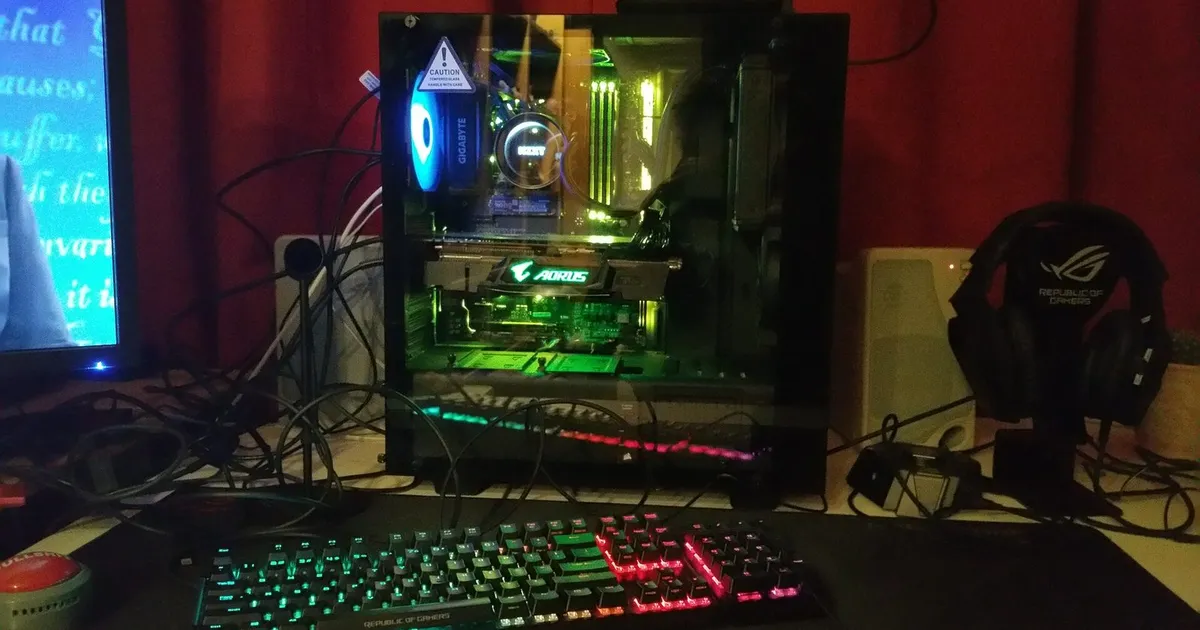
Photo: Prolete / Wikimedia Commons / CC0
Affiliate links.As an Amazon Associate I earn from qualifying purchases. Links below go to Amazon; prices and availability change, so check Amazon for current pricing.Affiliate disclosure
Variable refresh rate (VRR) technologies like NVIDIA G-SYNC and AMD FreeSync match your monitor’s refresh rate to your game’s frame rate. The result: no screen tearing and less stutter, without the input lag of traditional V-Sync. This guide explains how they work and how to set them up, based on how the technology is designed rather than lab testing. Links go to Amazon’s current listings.
Quick answer
| Technology | Works with | Notes |
|---|---|---|
| FreeSync | AMD GPUs; also NVIDIA as “G-SYNC Compatible” on many monitors | Most common |
| G-SYNC Compatible | NVIDIA GPUs on certified or tested FreeSync monitors | Same idea, NVIDIA-validated |
| G-SYNC (module or Pulsar) | NVIDIA GPUs | Premium implementation on some monitors |
| HDMI VRR | Consoles and PCs over HDMI 2.1 | PS5, Xbox Series X|S |
Many monitors, like the ASUS TUF Gaming VG27AQ and MSI MAG 274QRF-QD, support both AMD and NVIDIA VRR.
The problem VRR solves
- Without V-Sync: the GPU sends frames whenever ready, causing tearing.
- With traditional V-Sync: no tearing, but stutter and added input lag when FPS drops below the refresh rate.
- With VRR: the monitor refreshes when each frame arrives, so motion stays smooth.
VRR range and LFC
VRR works within a range (for example 48–165Hz). Below the minimum, Low Framerate Compensation (LFC) repeats frames to stay in range. Check your monitor supports LFC.
How to set it up (PC)
- Use DisplayPort for the widest support.
- Enable FreeSync/Adaptive Sync in the monitor’s menu.
- NVIDIA: turn on G-SYNC in the NVIDIA Control Panel. AMD: turn on FreeSync in Adrenalin.
- Cap your frame rate a few FPS below your refresh rate (for example 160 FPS on 165Hz), or use NVIDIA Reflex, which can cap automatically.
- V-Sync: many players enable V-Sync in the driver with VRR to prevent tearing at the top of the range, and disable it in-game.
Consoles
PS5 and Xbox Series X|S support HDMI VRR on compatible displays. Enable it in the console’s display settings. See monitors for PS5 and Xbox.
VRR and input lag
VRR with a frame cap gives smooth play with low latency. For more, see reducing input lag.
FAQ
Does G-SYNC work on FreeSync monitors? Often yes, as “G-SYNC Compatible” on NVIDIA cards.
Should I use V-Sync with G-SYNC? Many players enable it in the driver and cap FPS just below the refresh rate.
Bottom line
Turn on VRR, cap your frame rate slightly below the refresh rate, and enjoy tear-free, smooth gameplay. More in gaming monitor buying guide.
Our picks: Graphics cards & Processors
Shop on Amazon
Affiliate links.As an Amazon Associate I earn from qualifying purchases. Links below go to Amazon; prices and availability change, so check Amazon for current pricing.Affiliate disclosure
NVIDIA GeForce RTX 5070 Ti
16GB card that handles high-refresh 1440p and entry 4K.
Check price on Amazon
Illustrative photos: Photo by Timothy Borkowski / Wikimedia Commons / CC BY-SA 3.0; Photo by Myself User:ZyMOS / Wikimedia Commons / CC BY-SA 4.0; Photo by Advanced Micro Devices, Inc. (AMD) / Wikimedia Commons / Attribution; Photo by Jacek Halicki / Wikimedia Commons / CC BY-SA 4.0; Photo by Ondřej Martin Mach / Wikimedia Commons / CC BY-SA 3.0