Steam Settings Worth Changing for a Better PC Gaming Experience
Steam settings that improve downloads, storage, controller support and in-game overlays, and how to manage a library across drives.
Main page for gaming pcs: Gaming PCs →
Steam settings that improve downloads, storage, controller support and in-game overlays, and how to manage a library across drives.
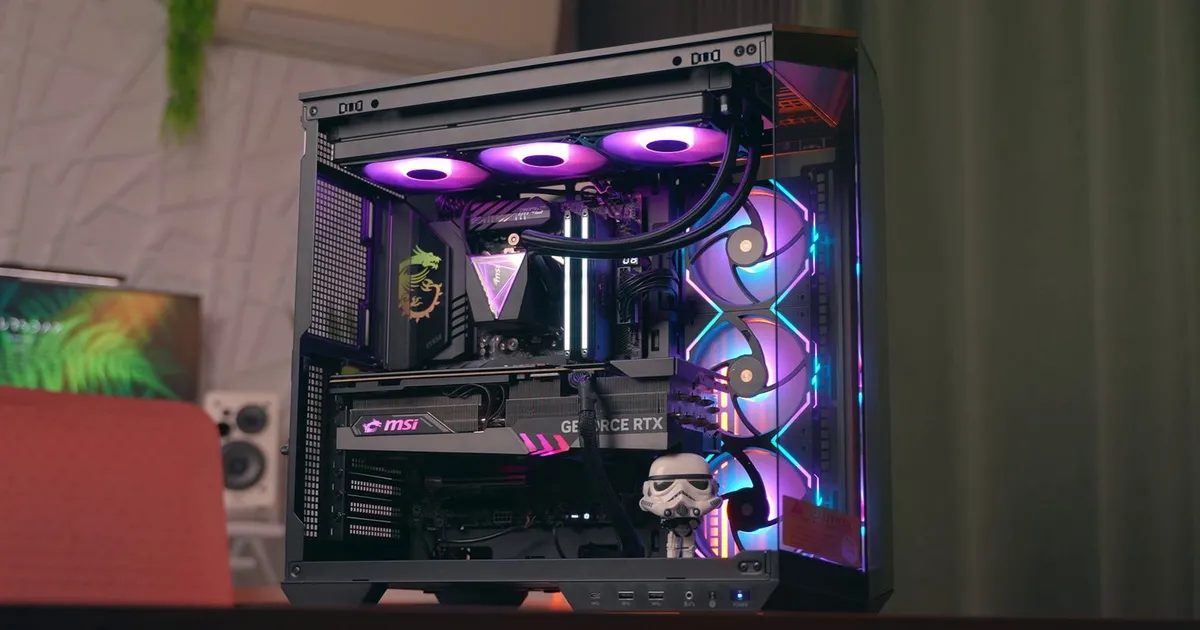
Photo by MoreThanTech / Wikimedia Commons / CC BY 3.0
Affiliate links.As an Amazon Associate I earn from qualifying purchases. Links below go to Amazon; prices and availability change, so check Amazon for current pricing.Affiliate disclosure
Steam’s default settings work, but a few changes make PC gaming smoother: better storage management, controller support, downloads and in-game overlays. This guide covers the settings worth changing, based on general practice rather than lab testing. Steam’s menus change over time, so names may differ slightly. Links go to Amazon’s current listings.
Quick answer
| Setting | Why change it |
|---|---|
| Storage: add library folders | Install games on your fastest or largest drive |
| Downloads: schedule and limits | Avoid lag from downloads while gaming |
| Shader pre-caching | Reduces stutter in some games |
| Steam Input | Use any controller in more games |
| In-game overlay: performance monitor | See FPS and frame times |
| Steam Families | Share games and manage kids’ accounts |
Storage
- Settings > Storage: add a library folder on each drive.
- Move games between drives without redownloading.
- Keep frequently played games on your fastest NVMe SSD. A large drive like the Crucial P3 Plus 4TB suits big libraries. See 4TB NVMe SSDs.
Downloads
- Throttle downloads while streaming or gaming.
- Schedule auto-updates for times you’re not playing.
- Download region: usually auto-selected; change it if downloads are slow.
Shader pre-caching
Lets Steam download pre-compiled shaders for some games, especially on Vulkan titles, reducing stutter. Leave it on unless storage is very tight.
Controllers: Steam Input
Steam Input lets Xbox controllers, PlayStation DualSense and others work in more games, with per-game remapping and gyro aiming.
- Enable support for your controller type in Settings > Controller.
- Per-game settings: turn Steam Input on or off if a game has conflicts.
See how to choose a gaming controller.
In-game overlay
- Performance monitor: shows FPS, frame times and CPU/GPU usage.
- Screenshots and recording: Steam’s game recording feature saves clips.
Big Picture mode
A controller-friendly interface for TV play. See playing PC games on your TV.
Steam Families
Share your library with family members and set restrictions for children. See setting up a family gaming setup.
Security
- Enable Steam Guard with the mobile authenticator.
- Never share login details or click “free skins” links.
FAQ
Should I turn off shader pre-caching? Usually no; it can reduce stutter.
Can I move Steam games to another drive? Yes, from Settings > Storage.
Bottom line
Organize storage, schedule downloads, keep shader pre-caching on, enable Steam Input, and use the performance overlay. More in how to organize your game library.
Our picks: Graphics cards & Processors
Shop on Amazon
Affiliate links.As an Amazon Associate I earn from qualifying purchases. Links below go to Amazon; prices and availability change, so check Amazon for current pricing.Affiliate disclosure
NVIDIA GeForce RTX 5070 Ti
16GB card that handles high-refresh 1440p and entry 4K.
Check price on Amazon

Illustrative photos: Photo by Timothy Borkowski / Wikimedia Commons / CC BY-SA 3.0; Photo by Myself User:ZyMOS / Wikimedia Commons / CC BY-SA 4.0; Photo by Advanced Micro Devices, Inc. (AMD) / Wikimedia Commons / Attribution; Photo by Jacek Halicki / Wikimedia Commons / CC BY-SA 4.0; Photo by Ondřej Martin Mach / Wikimedia Commons / CC BY-SA 3.0