Playing PC Games on Your TV: A Couch Gaming Setup
How to connect a gaming PC to a TV, the settings that make games look and feel right, and the controller and keyboard setup that works from the sofa.
How to connect a gaming PC to a TV, the settings that make games look and feel right, and the controller and keyboard setup that works from the sofa.
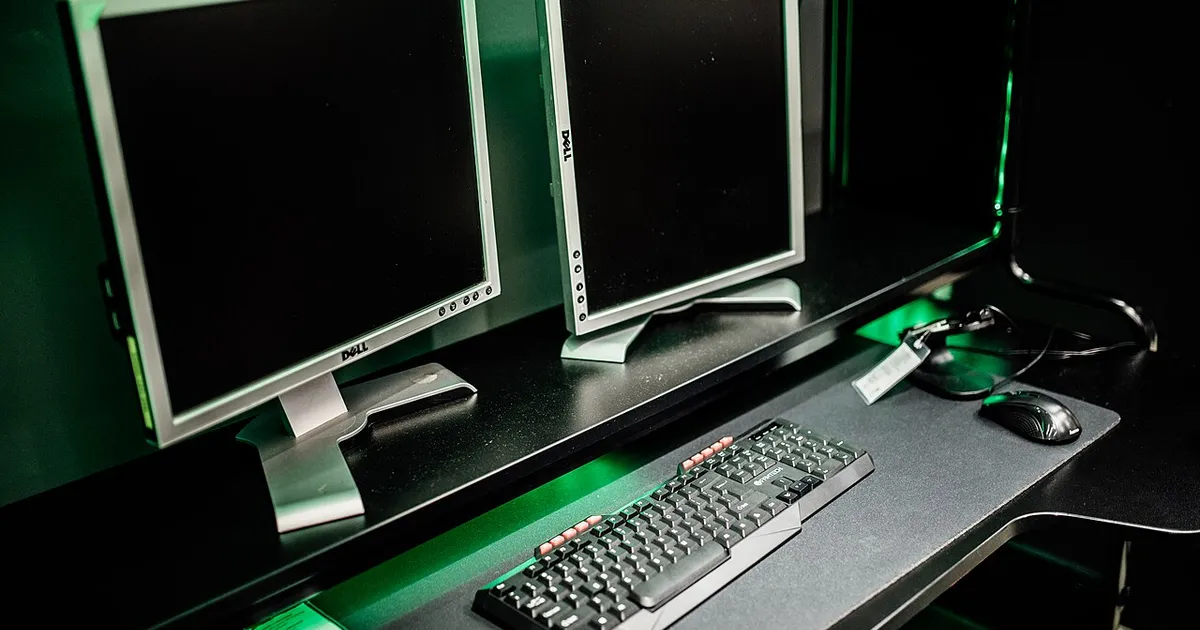
Photo by Shixart1985 / Wikimedia Commons / CC BY 2.0
Affiliate links.As an Amazon Associate I earn from qualifying purchases. Links below go to Amazon; prices and availability change, so check Amazon for current pricing.Affiliate disclosure
Playing PC games on a big TV from the couch can feel like a console, with the PC’s library and performance. You can connect the PC directly with a long HDMI cable or stream it to the TV from another room. This guide explains the setup, based on general practice rather than lab testing. Links go to Amazon’s current listings.
Quick answer
| Need | Solution |
|---|---|
| PC near the TV | HDMI cable directly to the TV |
| PC in another room | Stream with Steam Link or Moonlight |
| Controller | Xbox or PlayStation controller over Bluetooth or USB |
| Typing and menus | A wireless couch keyboard with touchpad |
| 4K at 120Hz | HDMI 2.1 on GPU, cable and TV |
Option 1: connect directly
- Use an Ultra High Speed HDMI 2.1 cable for 4K at 120Hz with VRR. Long runs may need an active or fiber-optic HDMI cable.
- Set the TV to Game Mode for lower input lag.
- Enable VRR (G-SYNC or FreeSync) if the TV supports it.
- Set Windows display scaling so text is readable from the couch.
Option 2: stream to the TV
- Steam Link apps and Moonlight (with NVIDIA’s or open-source host software) stream games from your PC to a TV, streaming stick or another device.
- Use wired Ethernet for the PC, and ideally the TV device, for the best quality.
Controllers
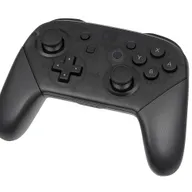
- An Xbox Wireless Controller has the widest PC game support.
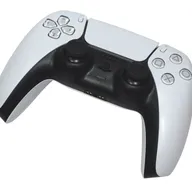
- PlayStation controllers work well through Steam Input.
- Bluetooth range: if the PC is far from the couch, a USB extension or wireless adapter helps.
See how to choose a gaming controller.
Navigation
- Steam Big Picture mode gives a console-like interface built for controllers.
- A wireless keyboard with touchpad like the Logitech K400 Plus handles launchers and logins.
Audio
- TV speakers or a soundbar through HDMI.
- An AV receiver for surround sound.
- Headset: plug into the controller (PlayStation controllers on some setups) or use a wireless headset with a dongle.
Performance at 4K
4K is demanding. Use DLSS or FSR upscaling, and consider 1440p or a 60 fps target for big TVs. See what to upgrade first.
Alternatives
A handheld PC docked to the TV is another option for lighter games. See our handheld comparison. Cloud gaming is a third; see cloud gaming services compared.
FAQ
Do I need HDMI 2.1? Only for 4K above 60Hz or full VRR support.
Is streaming as good as a direct cable? Over wired Ethernet, it’s very close for most games; a direct cable has the lowest latency.
Bottom line
Connect directly with HDMI 2.1 if the PC is near the TV, or stream over Ethernet if it isn’t. Add a controller, Big Picture mode and a couch keyboard. More on our Black Friday gaming deals hub.
Our picks: Graphics cards & Controllers
Shop on Amazon
Affiliate links.As an Amazon Associate I earn from qualifying purchases. Links below go to Amazon; prices and availability change, so check Amazon for current pricing.Affiliate disclosure
PlayStation DualSense Wireless Controller
Haptics and adaptive triggers on PS5 and PC.
Check price on AmazonNVIDIA GeForce RTX 5070 Ti
16GB card that handles high-refresh 1440p and entry 4K.
Check price on Amazon
Illustrative photos: Photo by Timothy Borkowski / Wikimedia Commons / CC BY-SA 3.0; Photo by Microsoft / Wikimedia Commons / CC BY-SA 4.0; Photo by Advanced Micro Devices, Inc. (AMD) / Wikimedia Commons / Attribution; Photo by Alex Cochrane / Wikimedia Commons / CC BY-SA 4.0; Photo by Evan-Amos / Wikimedia Commons / Public domain