Optimizing a Gaming Laptop: Power Modes, MUX Switches and Thermals
The settings that make the biggest difference to gaming laptop performance, from performance modes and the MUX switch to cooling.
The settings that make the biggest difference to gaming laptop performance, from performance modes and the MUX switch to cooling.
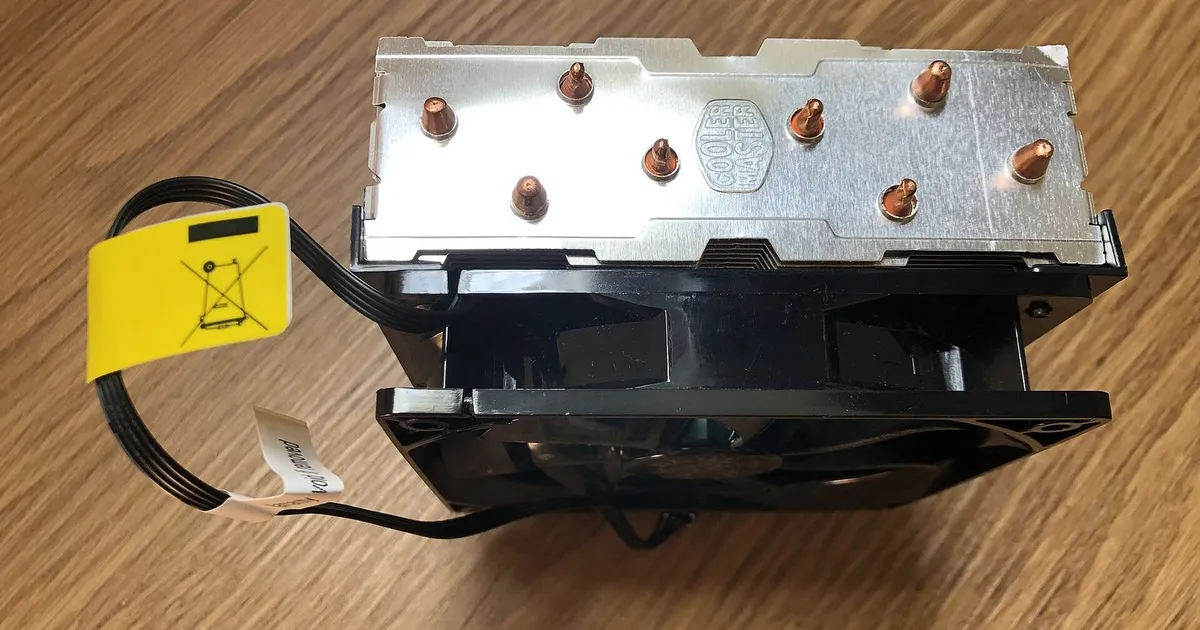
Photo by FASTILY / Wikimedia Commons / CC BY-SA 4.0
Affiliate links.As an Amazon Associate I earn from qualifying purchases. Links below go to Amazon; prices and availability change, so check Amazon for current pricing.Affiliate disclosure
Gaming laptops often perform below their potential because of power settings, the wrong GPU mode or heat. A few changes can raise performance noticeably. This guide covers them, based on general practice rather than lab testing. Links go to Amazon’s current listings.
Quick answer
| Fix | Effect |
|---|---|
| Play plugged in | Full performance (most laptops throttle on battery) |
| Use the laptop’s performance mode | Higher power limits |
| Enable the MUX switch or Advanced Optimus | Higher FPS, lower latency |
| Raise the back of the laptop | Cooler, less throttling |
| Update GPU drivers and BIOS | Fixes and performance |
| Clean vents | Restores cooling |
Power: plug in
On battery, gaming laptops limit the GPU and CPU heavily. Always plug in with the original charger for full performance.
Performance modes
Brands’ control apps (Armoury Crate, Legion Space/Vantage, OMEN Gaming Hub and others) offer modes like Silent, Balanced and Performance. Use Performance for demanding games, Balanced for quieter play.
MUX switch and Advanced Optimus
Many gaming laptops route the dedicated GPU’s output through the integrated GPU, which costs some performance. A MUX switch lets the dedicated GPU drive the screen directly.
- Enable “dGPU only” or “Discrete mode” in the laptop’s app or BIOS (often requires a restart).
- Advanced Optimus switches automatically on supported laptops.
- External monitors connected to ports wired to the dedicated GPU bypass the issue.
Thermals
- Raise the back of the laptop for better airflow. See gaming laptop cooling pads, such as the KLIM Wind.
- Never game on soft surfaces.
- Clean dust from vents. See PC dust filters and cleaning.
Game settings
- Upscaling (DLSS, FSR) gives big gains. See upscaling explained.
- Frame rate caps reduce heat and noise.
Windows settings
- Power mode: Best Performance while plugged in.
- Background apps: close what you don’t need.
See Windows settings for performance.
Upgrades
More RAM or a bigger SSD can help. See gaming laptop RAM and SSD upgrades.
FAQ
Why is my gaming laptop slow on battery? It’s designed to limit power on battery. Plug in for gaming.
What does a MUX switch do? Lets the dedicated GPU drive the display directly for better performance.
Bottom line
Plug in, use Performance mode, enable the MUX switch, keep it cool and use upscaling. More in gaming laptop cooling and thermal throttling.
Our picks: SSDs & Memory
Shop on Amazon
Affiliate links.As an Amazon Associate I earn from qualifying purchases. Links below go to Amazon; prices and availability change, so check Amazon for current pricing.Affiliate disclosure
G.Skill Trident Z5 Neo RGB DDR5-6000 32GB
EXPO-tuned kit made for Ryzen, with RGB.
Check price on AmazonKingston FURY Beast DDR5 32GB 6000MHz
Low-profile kit that clears big air coolers.
Check price on Amazon
Illustrative photos: Photo by Dmitry Nosachev / Wikimedia Commons / CC BY-SA 4.0; Photo via Wikimedia Commons / CC BY-SA 3.0; Photo by Victorrocha / Wikimedia Commons / CC BY 3.0