Ultrawide Gaming Setup Guide: Desk Size, Mounting, GPU Load and Game Support
How to plan an ultrawide gaming setup: how much desk you need for 34-inch and 49-inch screens, arm or stand, how much harder your GPU works, and which games handle 21:9 well.
Main page for monitors: Gaming Monitors →
How to plan an ultrawide gaming setup: how much desk you need for 34-inch and 49-inch screens, arm or stand, how much harder your GPU works, and which games handle 21:9 well.

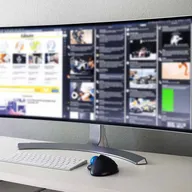
Photo by XALIRATE / Wikimedia Commons / CC BY 4.0
An ultrawide monitor changes a gaming setup more than almost any other upgrade. Racing and flight games wrap around you, strategy games show more of the map, and a single wide screen can replace two monitors with a bezel in the middle. But an ultrawide also asks more of everything around it: the desk, the mount, the graphics card and sometimes the games themselves.
This guide covers what to plan for before you buy, so the screen fits the setup you have, or the one you are building. If you are still deciding between ultrawide and a standard 16:9 monitor, read is an ultrawide right for you first, and for the difference between 21:9 and 32:9 see ultrawide aspect ratios explained.
Quick answer
| 34-inch 21:9 (3440 x 1440) | 49-inch 32:9 (5120 x 1440) | |
|---|---|---|
| Screen width (approx.) | about 80 cm / 32 in | about 115-120 cm / 45-47 in |
| Comfortable desk width | 120 cm / 47 in or more | 160 cm / 63 in or more |
| Comfortable desk depth | 70 cm / 28 in or more | 75-80 cm / 30-32 in or more |
| Pixels vs 2560 x 1440 | about 34% more | 2 times as many |
| Mounting | Stand works; heavy-duty arm optional | Heavy-duty arm or the included stand; check ratings carefully |
| Best for | Most players: games, work and media | Racing, flight sims, strategy and multitasking |
Screen widths vary by model and curve, so check the exact dimensions of the monitor you are considering.
Desk size: width matters, depth matters more
Width is the obvious measurement. A 34-inch ultrawide is about as wide as two 24-inch monitors without the gap, and a 49-inch super-ultrawide is about as wide as two 27-inch screens side by side. Leave room on both sides for speakers, a lamp or just elbow space.
Depth is the one people get wrong. Ultrawide stands are deep because they have to balance a wide, often curved, panel, and many stands reach well back from the front of the screen. The screen also needs to sit far enough from your eyes that you can take in the width without turning your head constantly. On a shallow desk, a big ultrawide ends up too close.
Rules of thumb:
- For a 34-inch ultrawide, a desk around 70 cm (28 in) deep is comfortable; a 60 cm desk can work, especially with an arm.
- For a 49-inch super-ultrawide, aim for 75-80 cm (30-32 in) of depth.
- If your desk is shallow, a monitor arm gives back the depth the stand would take, and lets you push the screen to the back edge.
If you are choosing a desk at the same time, our desk planner guides cover measuring for your setup.
Stand or monitor arm?
Most ultrawides come with a solid stand, and for many setups it is fine. An arm becomes worth it when:
- your desk is shallow and you need the space the stand takes up;
- you want the screen to float above a speaker bar, laptop or second device;
- you switch between sitting and standing and want fine height control.
Ultrawides are heavy and wide, so the arm has to be chosen carefully. Check the monitor’s weight without the stand against the arm’s range, confirm the VESA pattern, and expect recessed mounting holes on curved models. Wide screens also put more twisting force on the arm. Our guide to monitor arm problems and setup tips goes through sagging, wobble and desk damage in detail; all of it applies more strongly to ultrawides.
How much harder does your GPU work?
Resolution is where ultrawides cost you performance:
- 3440 x 1440 has about 34% more pixels than standard 2560 x 1440. Expect noticeably lower frame rates than at 1440p in the same game at the same settings, though not a full third lower, because not every part of the frame cost scales with pixel count.
- 5120 x 1440 has twice the pixels of 2560 x 1440, and is close to 4K (3840 x 2160) in pixel count. Treat a 49-inch super-ultrawide like a 4K monitor when you plan your graphics card.
What this means in practice:
- A GPU that comfortably runs your games at 1440p and high settings will usually handle a 34-inch ultrawide, with some settings lowered in demanding games.
- For 5120 x 1440 at high refresh rates, you need a GPU you would also choose for 4K gaming.
- Upscaling (DLSS, FSR or XeSS, where supported) helps a lot at these resolutions. See frame generation and upscaling explained for how they differ.
Not sure whether your CPU or GPU will hold you back? Our bottleneck calculator and FPS calculator give a rough starting point.
Game support: what works and what does not
Most modern PC games support 21:9 natively, and many support 32:9. When a game does not, you will usually see black bars on the sides (pillarboxing) and play in a 16:9 area in the middle of the screen.
Where ultrawide shines:
- Racing and flight sims: a wider field of view means seeing more of the road or cockpit.
- Strategy and city builders: more of the map on screen at once.
- Open-world and single-player games: the extra width adds a lot of atmosphere.
Where to expect friction:
- Some games do not support ultrawide at all. FromSoftware’s Elden Ring, for example, runs in 16:9 with black bars on an ultrawide without third-party mods.
- Cutscenes are often rendered in 16:9 even when gameplay fills the screen.
- Competitive shooters vary. Some support 21:9 but limit the field of view, and many competitive players stick to 24-inch or 27-inch 16:9 screens anyway. If competitive FPS is your main game, read our guide to 24-inch esports monitors before switching.
- Consoles: current consoles output 16:9, so on an ultrawide they play with black bars on the sides.
Before buying, check whether your most-played games support 21:9 or 32:9. Community sites and PC gaming wikis track ultrawide support game by game.
Curve, panel type and refresh rate
- Curve: almost all 34-inch and larger ultrawides are curved, which keeps the edges at a similar distance from your eyes. Numbers like 1800R and 1000R describe the curve; the smaller the number, the tighter the curve. Tighter curves feel more immersive at a desk but can distort straight lines in work apps.
- Panel type: IPS, VA and OLED ultrawides all exist. VA panels often have strong contrast at lower prices; OLED offers the best contrast and response time at a higher price and with burn-in considerations. Our guides to IPS vs VA vs TN and OLED gaming monitors explain the trade-offs.
- Refresh rate: 144-175 Hz is common on ultrawides, with faster models available. Remember the GPU cost above before paying for a refresh rate you cannot reach.
Ultrawide setup checklist
- Measure the desk: width and depth, and the clearance behind it if you plan to use an arm.
- Check the GPU against the resolution: 34-inch is roughly 1440p-plus, 49-inch is roughly 4K-class.
- Check game support for the games you play most.
- Decide on stand vs arm, and if using an arm, check weight, VESA pattern and desk material.
- Plan the cables: ultrawides often need DisplayPort to reach their full refresh rate, so check your GPU’s outputs and use the cable that came in the box.
- Set the distance: sit so you can see the edges without turning your head constantly; for most 34-inch screens that is a bit further back than you would sit from a 27-inch monitor.
- Set the height: the top of the screen at or slightly below eye level.
FAQ
How big a desk do I need for an ultrawide? For a 34-inch ultrawide, about 120 cm (47 in) wide and 70 cm (28 in) deep is comfortable. For a 49-inch super-ultrawide, plan for about 160 cm (63 in) wide and 75-80 cm (30-32 in) deep. A monitor arm lets a shallower desk work.
Is an ultrawide harder to run than 1440p? Yes. 3440 x 1440 has about 34% more pixels than 2560 x 1440, and 5120 x 1440 has twice as many, close to 4K.
Is ultrawide good for competitive games? It depends on the game. Some limit ultrawide support, and many competitive players prefer smaller 16:9 screens so the whole screen is in view.
Can I use a monitor arm with an ultrawide? Yes, if the arm is rated for the monitor’s weight without the stand and supports its VESA pattern. Curved ultrawides usually need the spacers that come with the arm.
Do consoles support ultrawide? Current consoles output 16:9, so on an ultrawide they show black bars on the sides.
Bottom line
An ultrawide is a great gaming upgrade when the rest of the setup is ready for it. Measure the desk depth as well as the width, size the GPU for the extra pixels, check your games, and choose a stand or arm that can carry the screen. Get those right and the ultrawide will feel like a bigger upgrade than the spec sheet suggests.
Our picks: Ultrawide monitors
Shop on Amazon
Affiliate links.As an Amazon Associate I earn from qualifying purchases. Links below go to Amazon; prices and availability change, so check Amazon for current pricing.Affiliate disclosure
Illustrative photos: Photo by Lipsbaterando / Wikimedia Commons / CC BY-SA 4.0